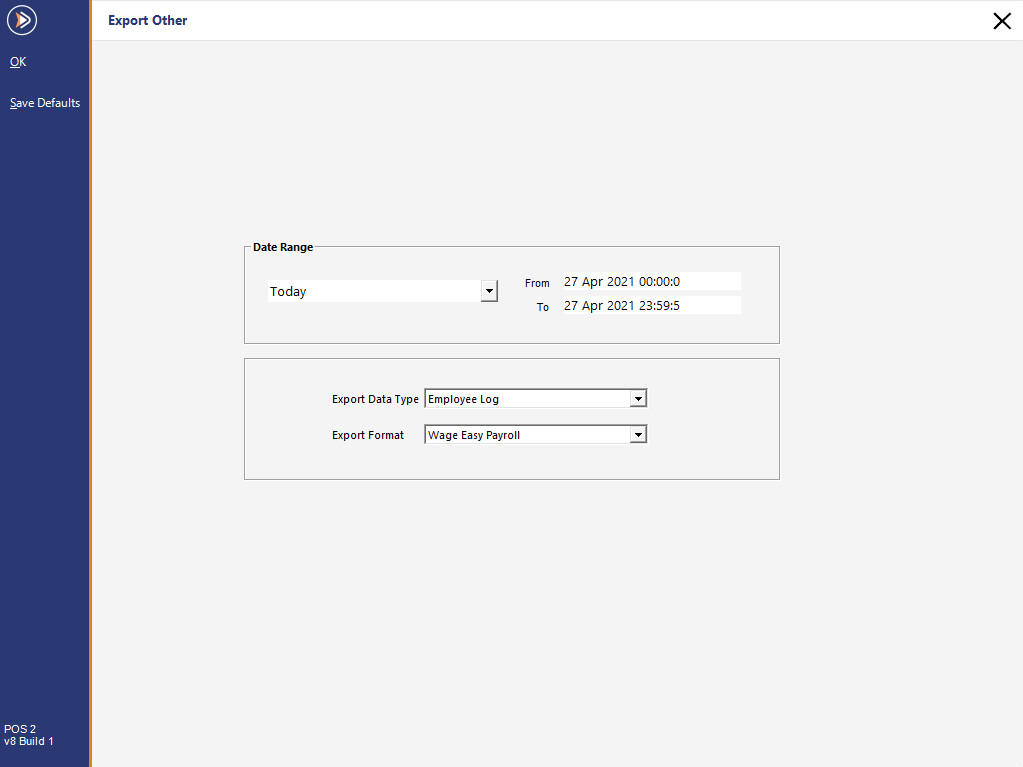
To access the Export Other function, go to: Back Office > Utilities > Other Data.
The Export Other Data function enables the export of the following data:
Once an Export Format and Date Range have been selected, pressing the OK button will export the data, as outlined in the Exporting Data heading below.
To export Wage Easy Payroll, select the following options:
Employee log data that will be exported in a format that can be imported for use in Wage Easy Payroll software.
You can find out more information about Wage Easy Payroll on their website.
The file that is exported will be a. wtc file that can be imported into Wage Easy.

To export iKnow Transaction Files, select the following options:
When pressing the "OK" button to export iKnow Transaction Files, they will be exported to the folder path that's configured in:
Back Office > Setup > POS Terminals > Select a POS Terminal > Modify > Import/Export > Automatic Export Settings > Export Folder.
Ensure that the Export Sales Format has been set to iKnow in the Automatic Export Settings.
The IGT EZ Insights Export Sales Format is the successor to the old iKnow format.
To export IGT EZ Insights Transaction Files, select the following options:
When pressing the "OK" button to export IGT EZ Insights Transaction Files, they will be exported to the folder path that's configured in:
Back Office > Setup > POS Terminals > Select a POS Terminal > Modify > Import/Export > Automatic Export Settings > Export Folder.
Ensure that the Export Sales Format has been set to IGT EZ Insights in the Automatic Export Settings.
For more information, click here.
To export LMG Transactions, select the following options (note that the Export Format "LMG Transactions" will only appear when the LMG module has been licensed):
When the "Activity Log Email Addresses" option is selected, Idealpos will export a list of Email Addresses that were recorded in the Activity Log for the selected Date Range.
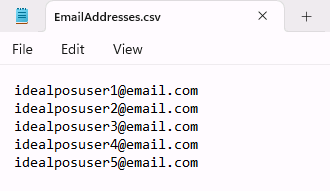
Email Addresses are simply exported as one email address per line in the exported file.
To export Activity Log Email Addresses, select the following options:
The below is a small sample export that shows how email addresses appear in the export file:
Once the required selection criteria has been chosen, press the "OK" button on the top-left corner of the Export Other window.
A prompt will be displayed to select the folder location in which to save the exported data.
Once the export has successfully been saved, a confirmation window will display.