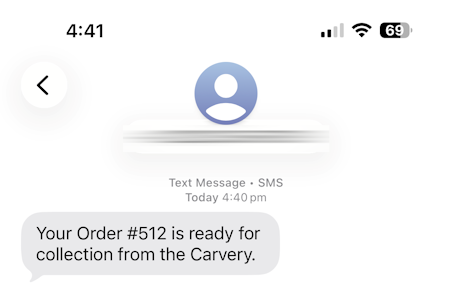
Refer to the steps outlined below to configure and use SMS Notifications in Ideal Kitchen Monitor.
To configure IKM SMS Notifications for Ready/Done orders, complete the steps outlined below.
License Idealpos for SMS Functionality
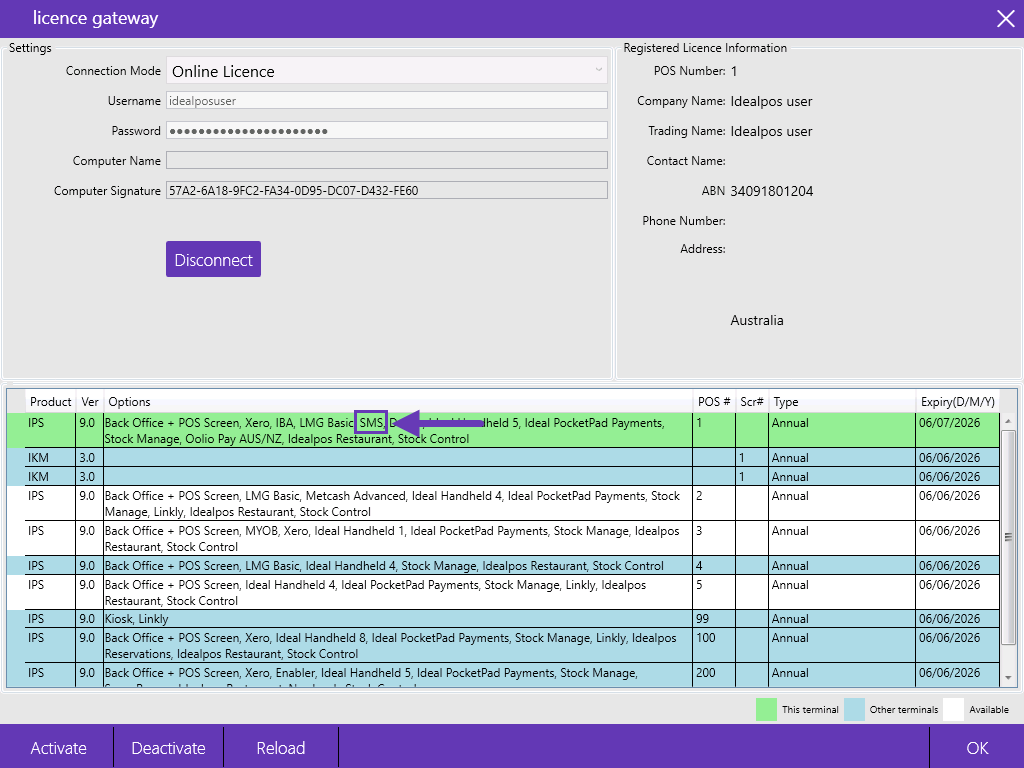
The Idealpos Licence Gateway needs to have the SMS option enabled for each POS Terminal that sends orders to the Ideal Kitchen Monitor.
Contact Idealpos or your Idealpos Reseller to purchase the SMS module.
After the module has been purchased, go to: Back Office > Setup > Licence Gateway > Press the "Reload" button at the bottom of the Licence Gateway.
Ensure that SMS appears for each POS Terminal that will send orders to the Ideal Kitchen Monitor.
Setup an account with Twilio
Go to: https://www.twilio.com and setup a new account for SMS functionality.
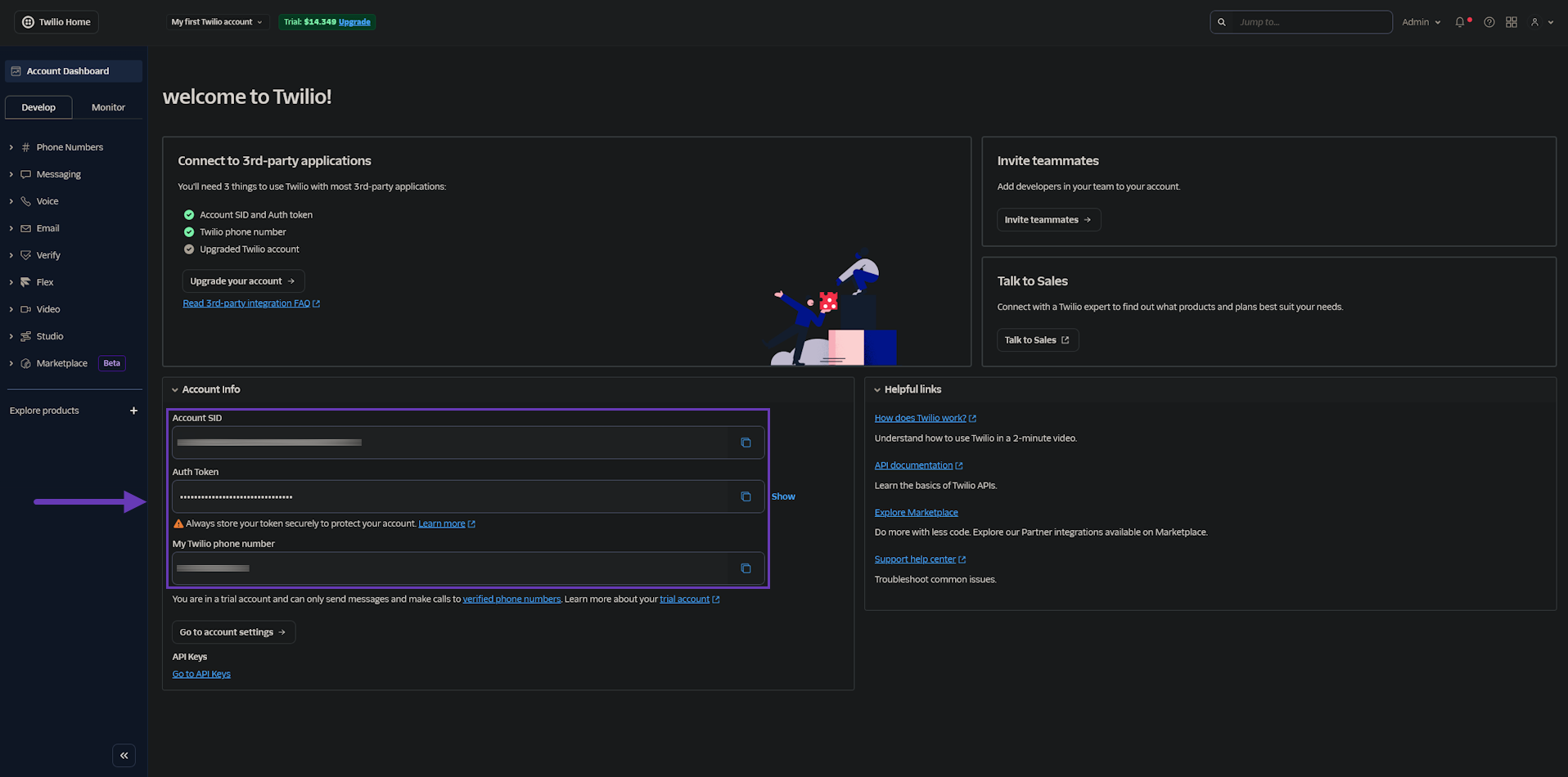
Ensure that an Account SID, AuthToken and Phone Number has been supplied which will be required for configuring Ideal Kitchen Monitor.
After logging into Twilio, these details should appear on the main page.
See the below example which shows where these details will appear after logging into Twilio.
Download/Install Ideal Kitchen Monitor to v4.0.0.0 or higher
Ensure that Ideal Kitchen Monitor v4.0.0.0 or higher is installed.
The latest version of Ideal Kitchen Monitor can be downloaded from the Idealpos Portal; https://portal.idealpos.com.au
Go to: https://portal.idealpos.com.au > select Downloads > Files > Software > Ideal Kitchen Monitor > Download the latest version available (ensuring it is v4.0.0.0 or higher).
After downloading the updated version, it can be installed on top of the existing installation which should trigger it to upgrade.
Configure Ideal Kitchen Monitor
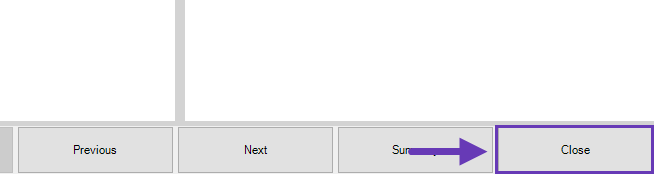
In Ideal Kitchen Monitor, press the "Close" button on the bottom-right corner of the Ideal Kitchen Monitor [Server] screen.
Within Ideal Kitchen Monitor, go to: Setup > Screens.
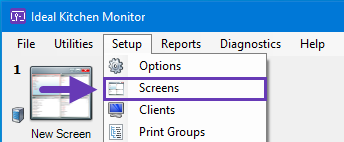
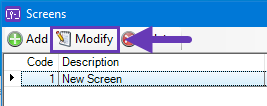
Select a screen > Modify.
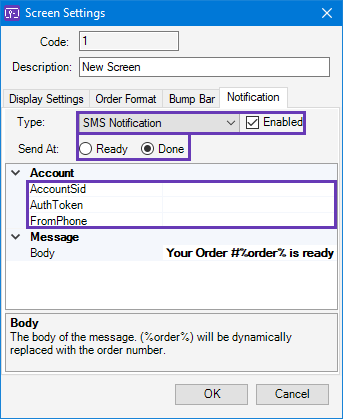
In the Notification tab, create a new Notification as follows:
Press "OK" to save the change.
Close the Screens window.
Click on the Screen in the Ideal Kitchen Monitor window.
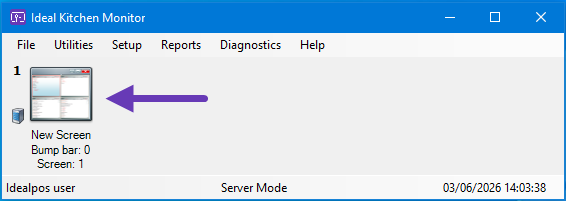
This functionality is now ready for use.
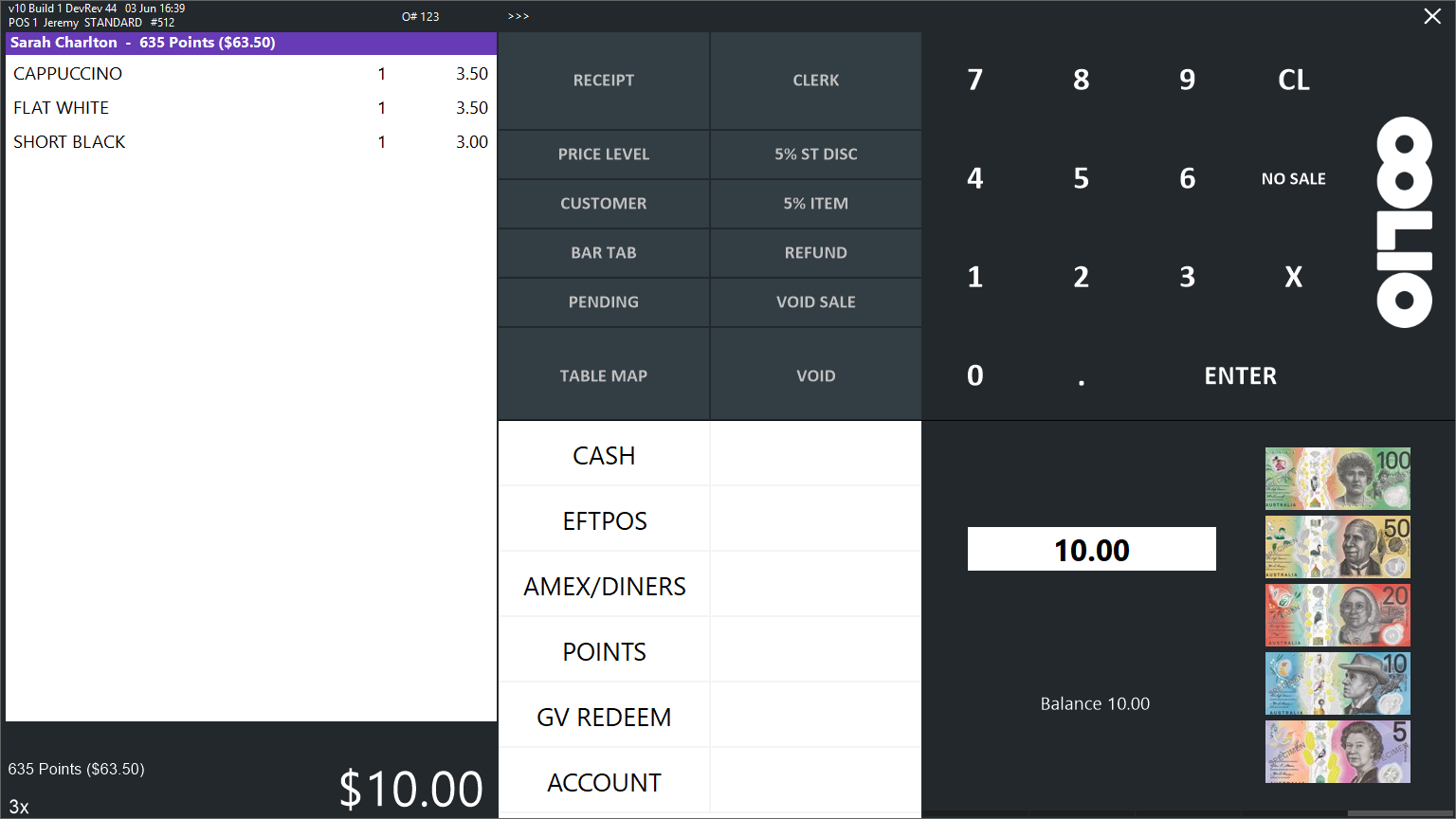
From the Idealpos POS Screen, add items to the order which are configured to print to the Kitchen Monitor.
Press the "Customers" button and add a Customer to the sale which has their Mobile Phone Number populated in their customer record.
Online Orders which originate from eCommerce Integrations will include the Phone Number that the customer entered in the eCommerce Integration.
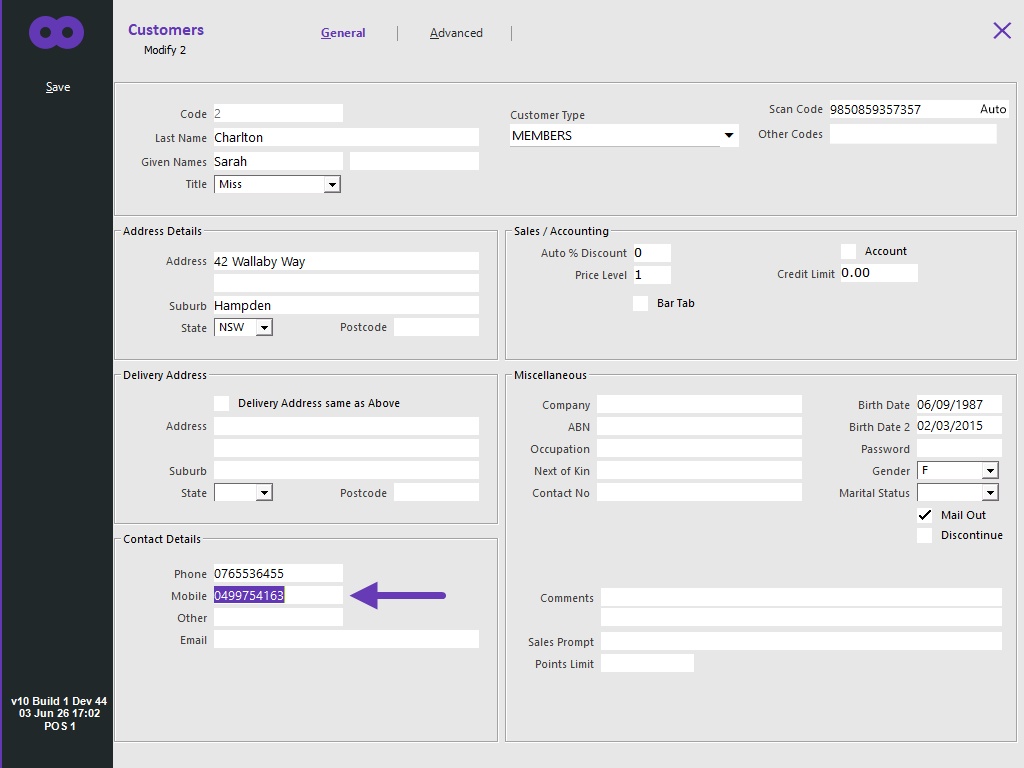
For a standard Idealpos Customer, the Phone Number is sent from the Mobile Number field stored in:
Back Office > File > Customers > Customers > Select a Customer > Modify > Mobile.
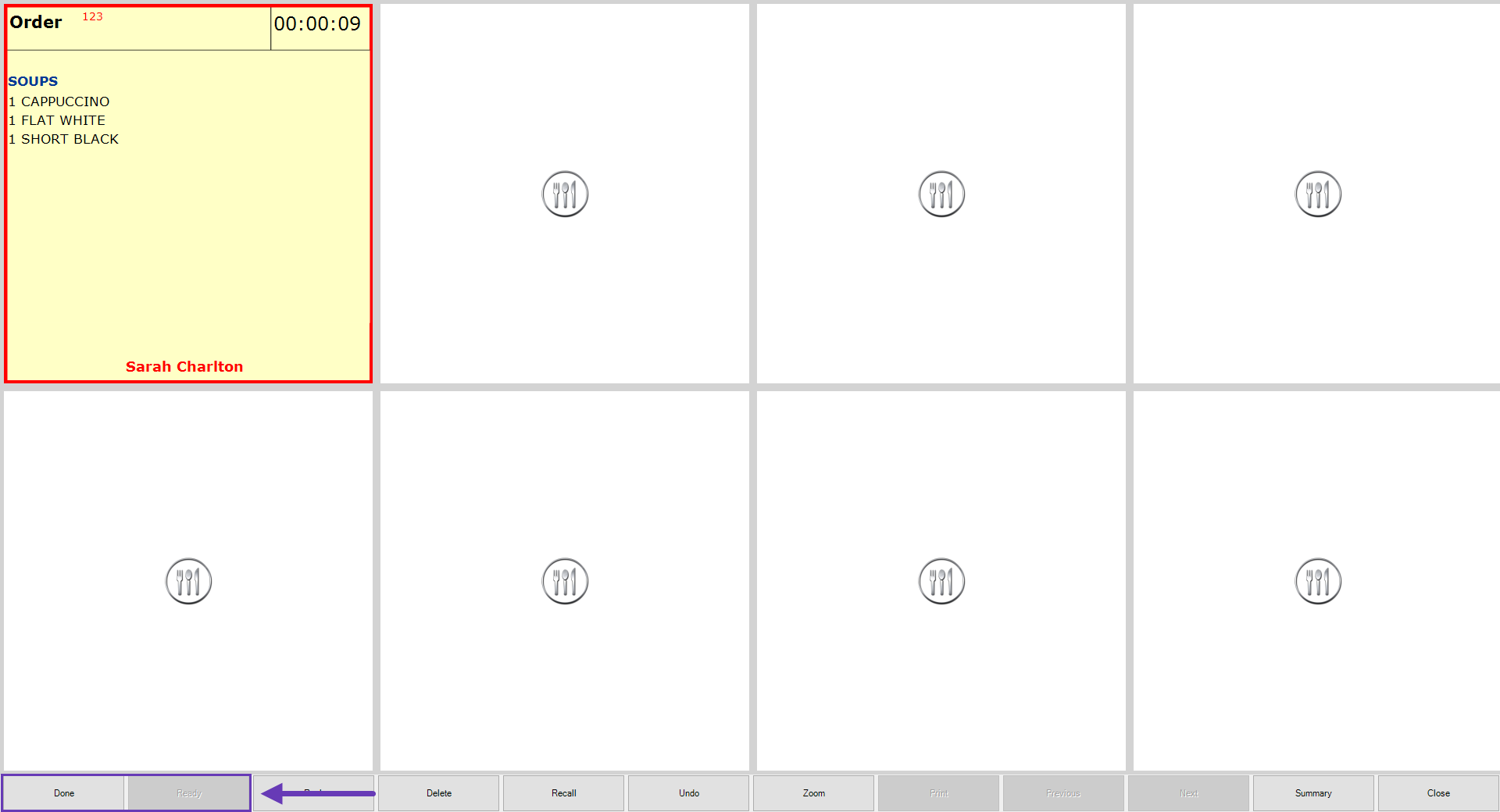
After the order is finalised and sent to Ideal Kitchen Monitor, it will appear on the Ideal Kitchen Monitor screen.
Select the order and press the order status (Ready or Done) that was configured in the Send At setting of Ideal Kitchen Monitor.
The Customer will receive an SMS message on their phone notifying htem that their order is ready for collection.