Open topic with navigation
Configuring Idealpos Engage Coupons Functionality
To configure Idealpos Engage Coupons, complete the process outlined below:
Note that parts of some steps outlined below may have already been configured as part of the Engage onboarding process.
Global Options Configuration
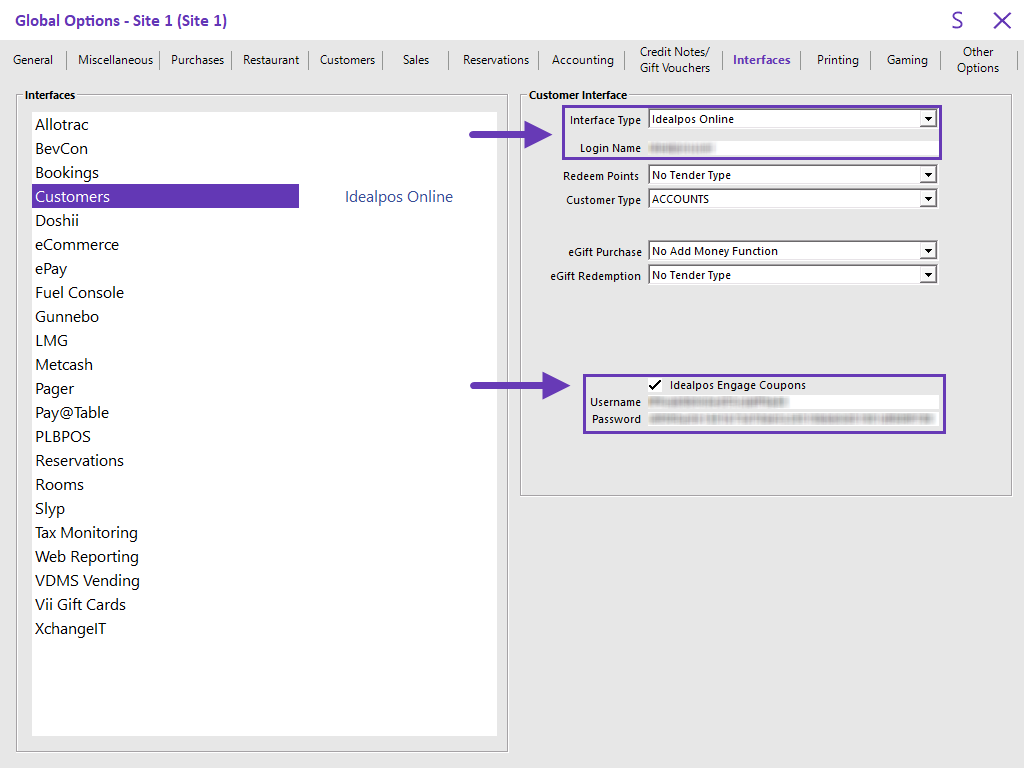
Go to: Back Office > Setup > Global Options > Interfaces > Customers.
- Interface Type: Idealpos Online
- Login Name: This should be pre-filled with the Login Name used for the Online Licence (i.e. shown in Back Office > Setup > Licence Gateway > Username).
- Idealpos Engage Coupons: Enable checkbox.
- Username: Enter the Username supplied for Idealpos Engage Coupons.
- Password: Enter the Password supplied for Idealpos Engage Coupons.
Create Customer Coupons button on POS Screen
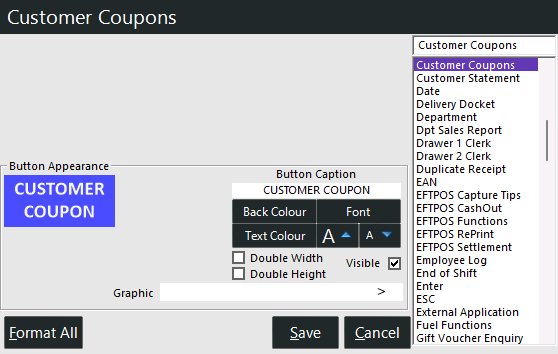
To view/select Idealpos Engage Coupon(s) to trigger during a sale, a Customer Coupons button will need to exist on the POS Screen.
If the button does not exist, create the button by going to:
Back Office > Setup > POS Screen > POS Screen Setup > Select a POS Screen Layout > Buttons.
Select a blank/unused button and configure as follows:
- Function: Customer Coupons.
- Button Appearance: Customise as required.
Create the Coupon Promotions
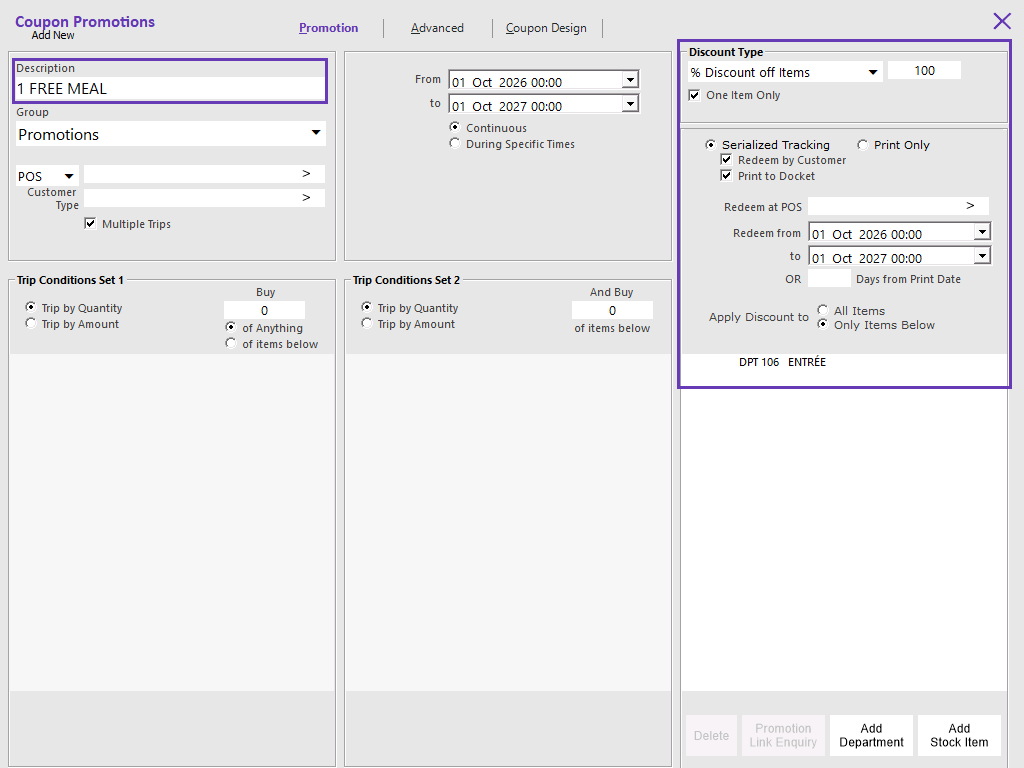
Go to: Back Office > File > Sales > Promotions > Coupon Promotions > Add.
Promotion Tab
There are two options available when naming the Coupon Promotions.
- Description: Enter a Description that matches the Talkbox Coupon.
- Description: Enter a different Description that does not match the Talkbox Coupon and instead, use the External Description field to enter the Description of the Coupon as it appears in Talkbox (External Description is available in the Advanced tab outlined below).
Configure the Discount settings in the Coupon Promotion as required.
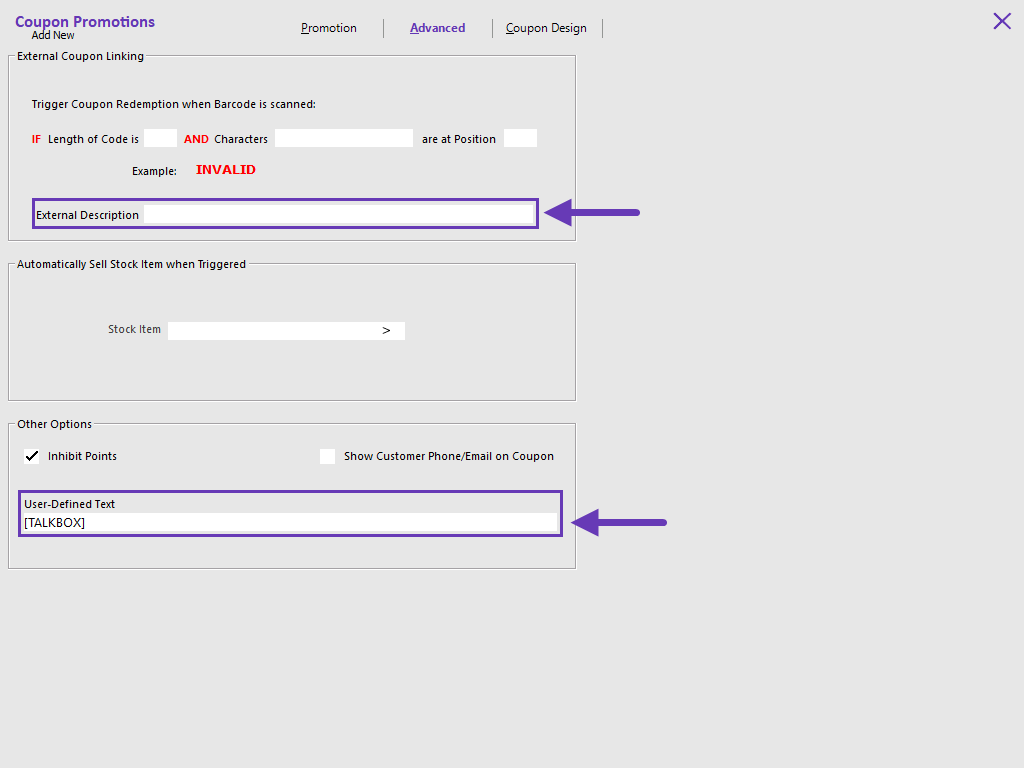
Advanced Tab
External Coupon Linking
- External Description: If the Description entered in the Promotion tab does not match the Talkbox Coupon, enter the Talkbox Coupon Description in this field.
Other Options
- User-Defined Text: [TALKBOX]
Close the Add New Coupon Promotion window and save the change when prompted.
Repeat the above process to create a Coupon Promotion for each Talkbox Coupon.
Open topic with navigation