To use the Zen Gift Vouchers function with the LMG Zen Interface, ensure that the required configuration has been completed as outlined in the Configuring LMG Zen Loyalty Interface page.
The following functionality is supported with Zen Gift Vouchers:
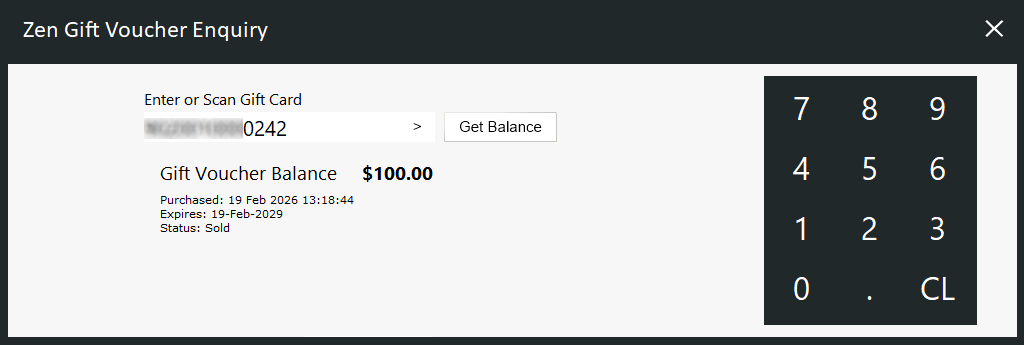
To perform a Gift Voucher Enquiry, press the Gift Voucher Enquiry button.
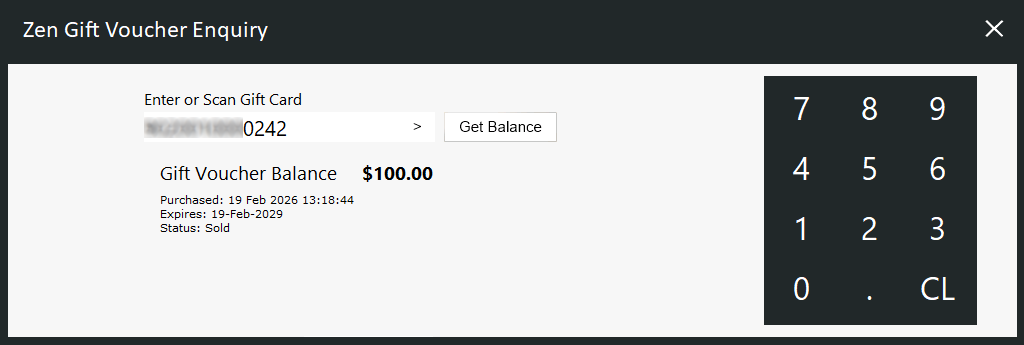
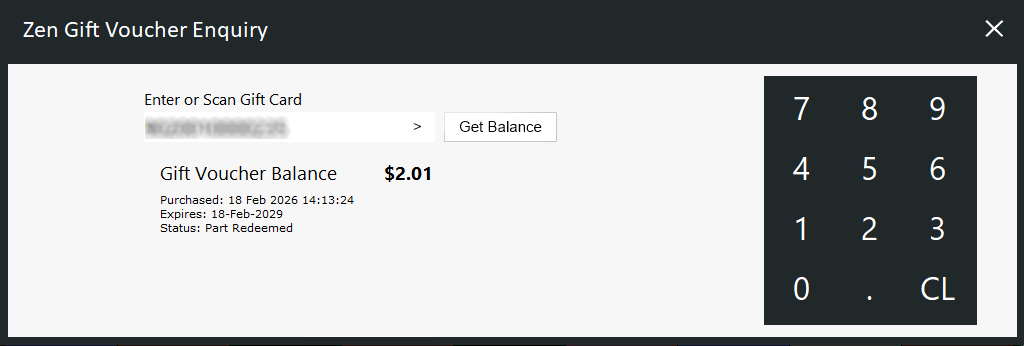
The Zen Gift Voucher Enquiry window will appear.
Enter or Scan the Zen Gift Voucher > Press "Get Balance".
The Gift Voucher Balance will be displayed as well as any other details about the Gift Voucher (Purchased Date, Expiry Date and Status).
To perform a Zen Gift Voucher Sale, press the Recharge Zen Gift Voucher Button.
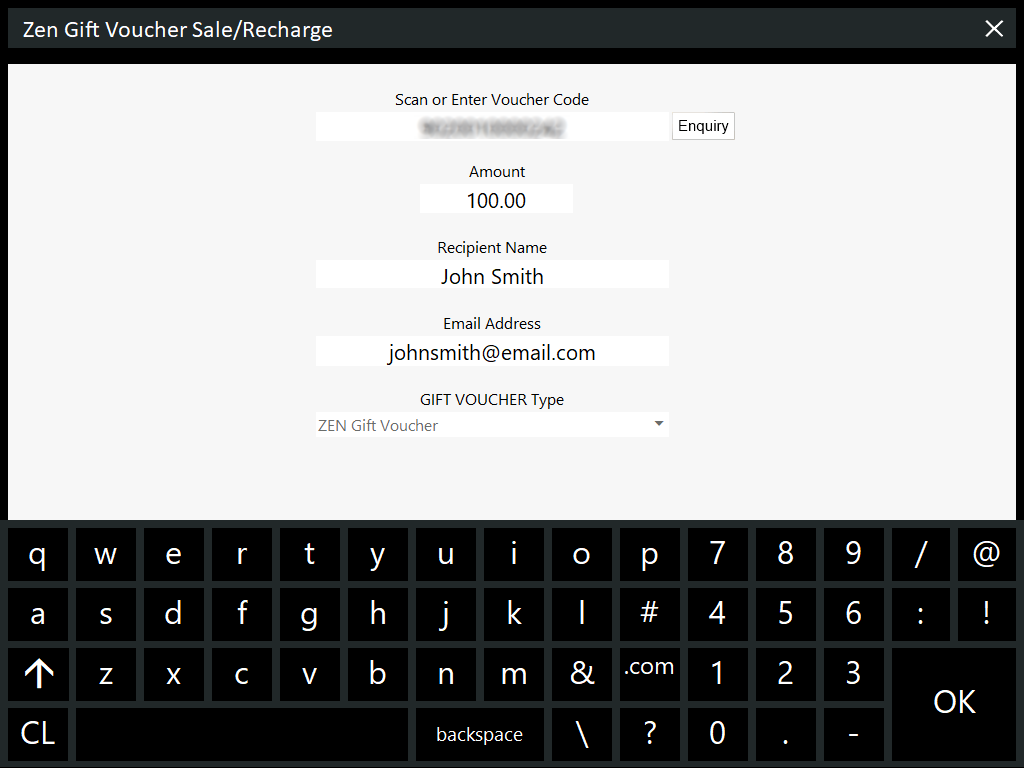
Within the Zen Gift Voucher Sale/Recharge window, enter the following details:
Scan or Enter Voucher Code: Scan or Enter an unused Voucher Code. The "Enquiry" button can be pressed.
A "Not Found" prompt will indicate that the Gift Voucher has not been used previously.
If the card has been previously issued, the card's details will be displayed on the top-left corner of the window.
Amount: Enter the amount to load onto the Gift Voucher.
Recipient Name: Enter the name of the recipient.
Email Address: Enter the Recipient's Email Address. Note that this is only for logging purposes and will not send an email to the recipient.
GIFT VOUCHER Type: Zen Gift Voucher (Read-Only dropdown box).
Press "OK" once the above details have been entered.
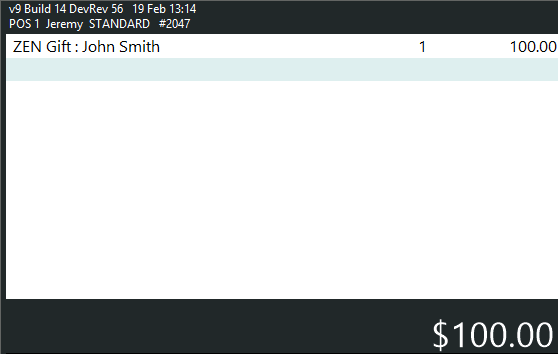
The Gift Voucher is added to the sale window.
Press the ENTER button to go to the Tender screen and finalise the sale.
The Gift Voucher's Card Number will appear in the Idealpos Journal History Enquiry (Back Office > Enquiry > Journal History).
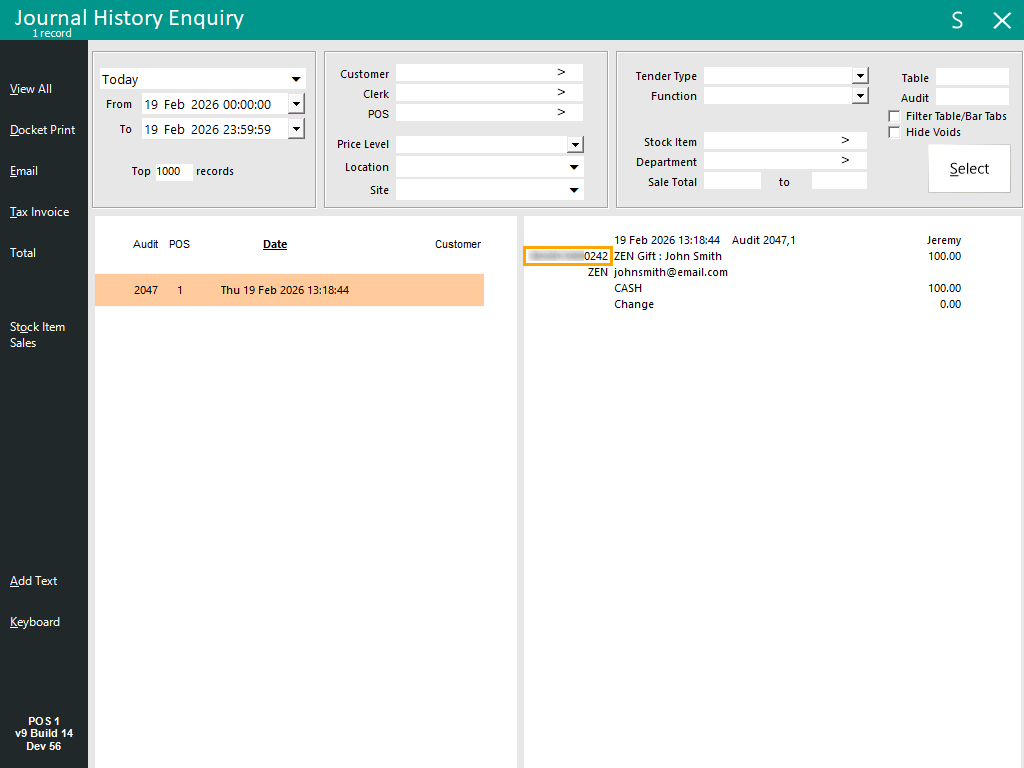
After the Gift Voucher is sold, the Gift Voucher Enquiry function will show that it has been loaded with the same balance as entered during the sale of the Gift Voucher.
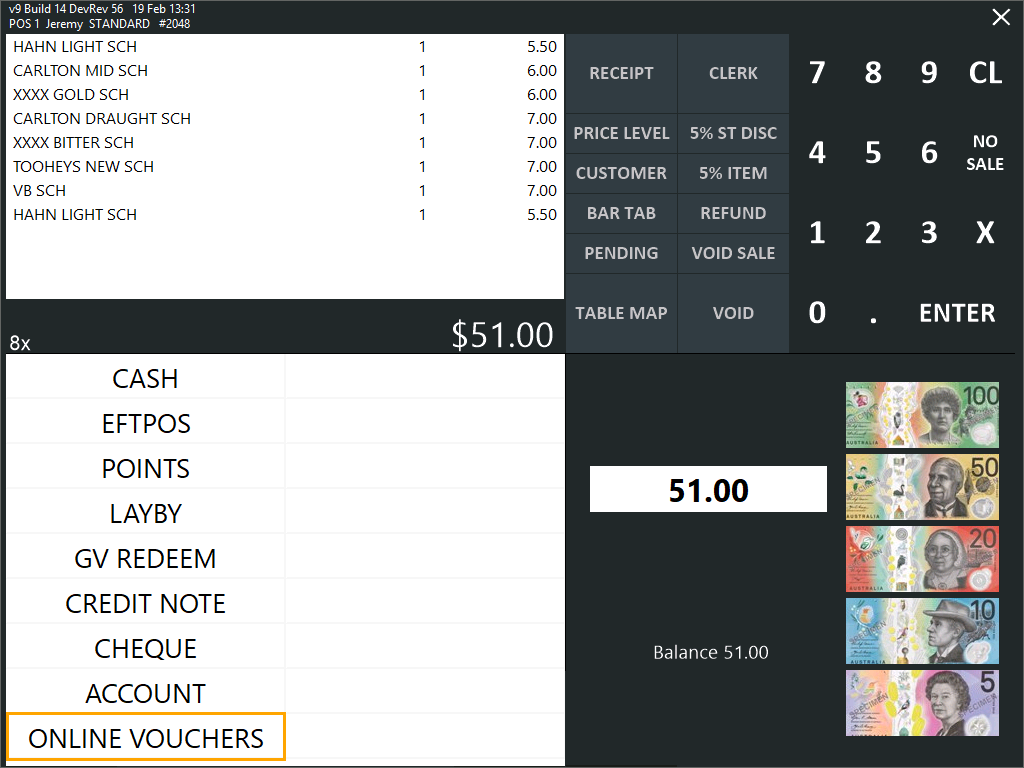
To perform a Gift Voucher Redemption, add the items to the sale, then press the ENTER button to go to the Tender screen.
From the Tender screen, press the ONLINE VOUCHERS button.
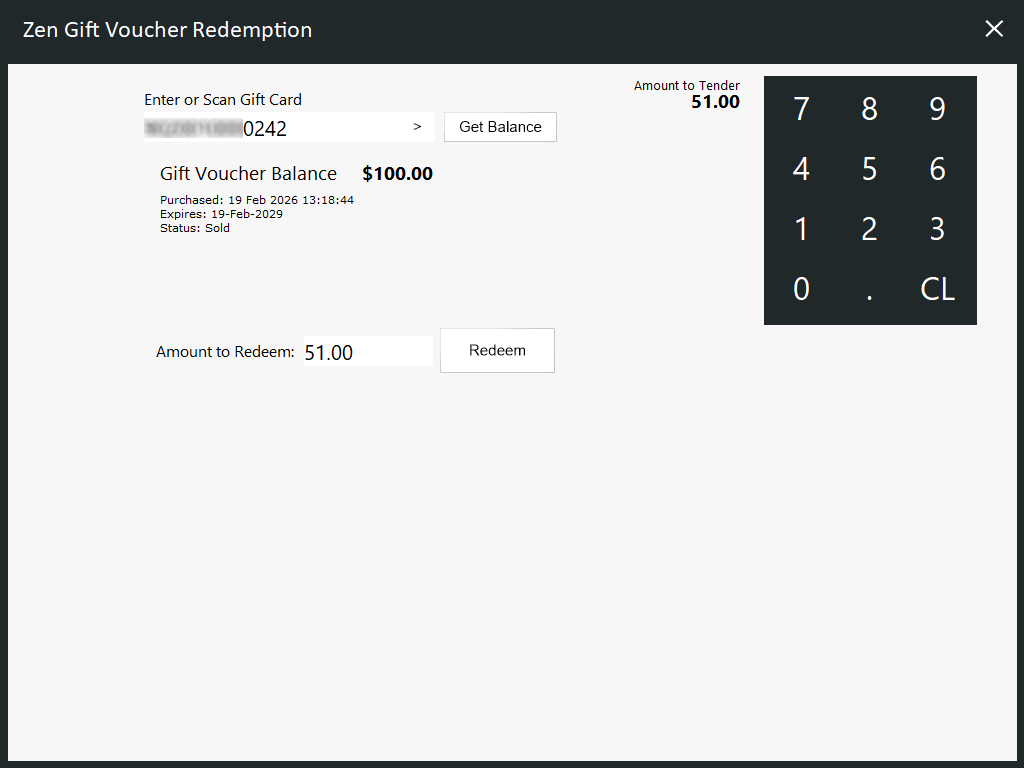
The Zen Gift Voucher Redemption window will open.
Enter or Scan Gift Card.
After Entering/Scanning the Card, the "Get Balance" button can be pressed if required to show the available balance on-screen.
The Amount to Redeem field will show the amount being redeemed.
If required, the amount can be adjusted by selecting the field then using the on-screen numeric keypad to enter the required redemption amount.
Press the "Redeem" button.
After performing a successful redemption, a prompt will appear showing the Available Balance remaining on the Gift Voucher.

Other messages will be displayed depending on the status of the Gift Voucher.
To perform a Gift Voucher Recharge, select the Recharge Zen Gift Voucher button on the POS Screen.
Within the Zen Gift Voucher Sale/Recharge window, Scan or Enter Voucher Code > Press Enquiry.
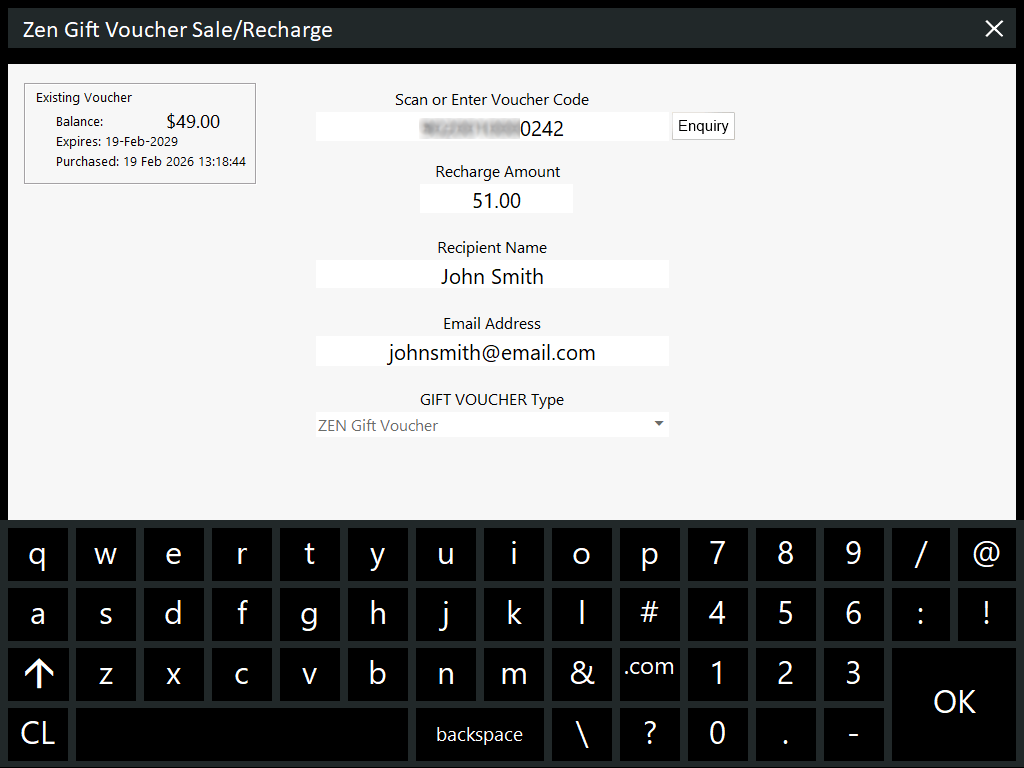
Existing Voucher will appear on the top-left corner and will show the Balance, Expiry and Purchased dates.
An existing Gift Voucher can be recharged, even if the amount of the Voucher has not reached $0.00.
When a Gift Voucher is recharged, the Expiry Date for the voucher will be updated.
Enter a Recharge Amount into the Recharge Amount field, then press "OK".
This will add the entered amount to the existing balance of the Gift Voucher.
The below example shows a Gift Voucher with a Balance of $49.00 and a Recharge Amount of $51.00.
After the sale is tendered, the Gift Voucher Balance will increase to $100.00.
The Gift Voucher will appear in the sale window.
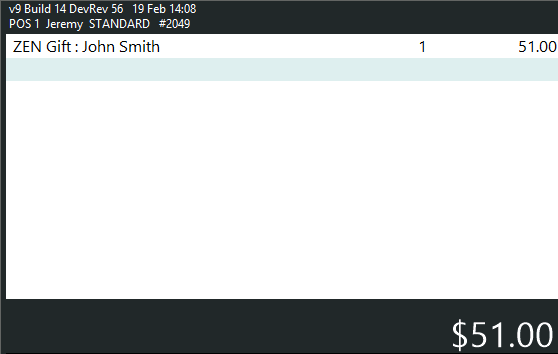
Press ENTER to go to the Tender screen and finalise the sale.
When enquiring the Recharged Gift Voucher with the Gift Voucher Enquiry function, the new balance will be displayed.