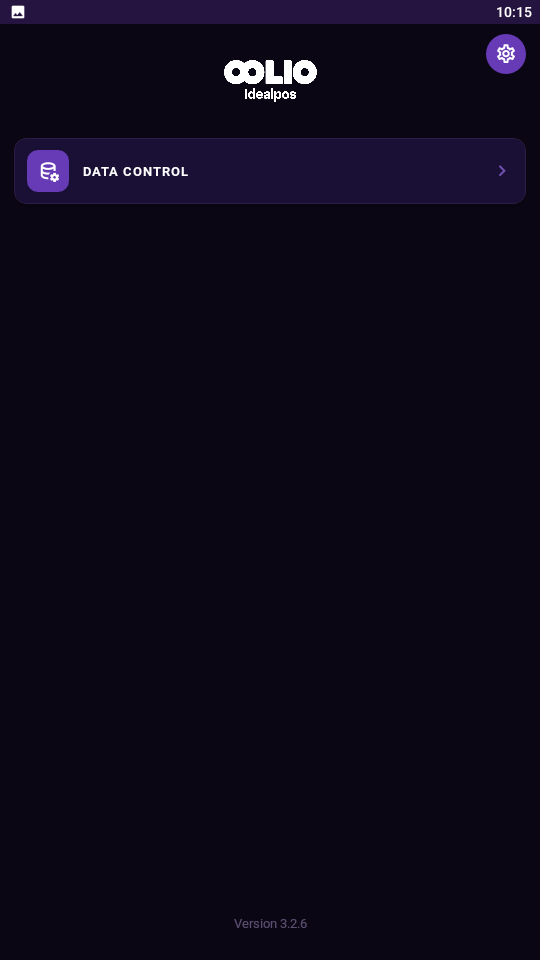
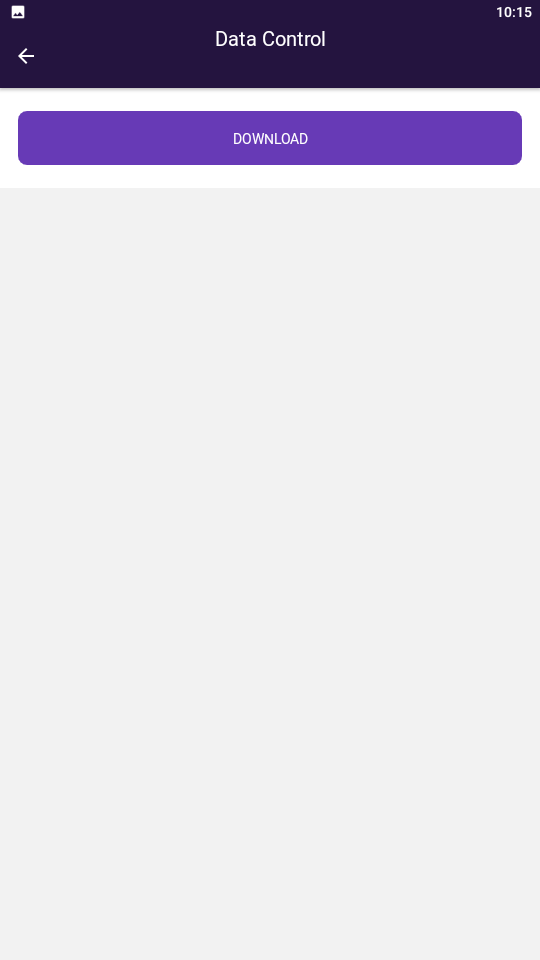
The ‘Download’ button is located within the ‘Data Control’ menu from the main screen.
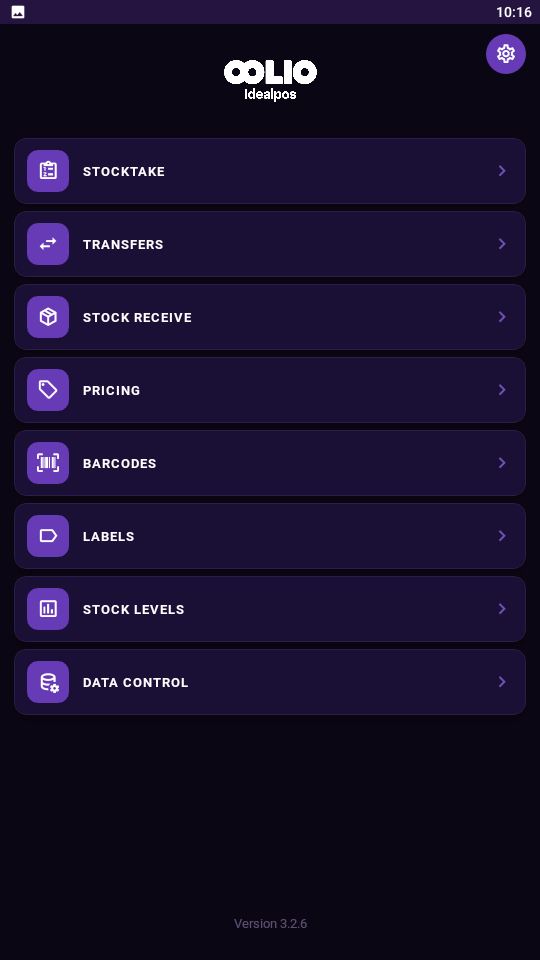
The "Data Control" menu option will be the only option which appears in the Pocket Stock menu if the app has not previously downloaded data from Idealpos.
Data Control will allow you to download the database from your Idealpos database.
You do not have a choice of data, Idealpos will send all relevant data when the request for the download is made.
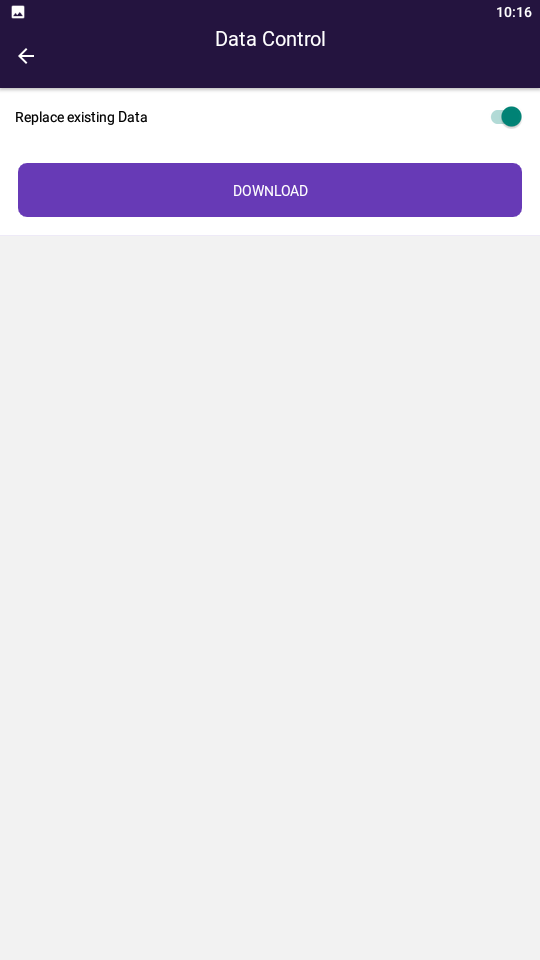
If data has been entered for items previously, you will not be able to download data without replacing what is already there.
To replace the existing data without sending it to Idealpos, enable the"Replace existing Data" option which will enable the Download button so that the data can be downloaded.
Replace existing Data will overwrite any existing data that is currently in Pocket Stock; this includes any items in Stocktake, Stock Transfers, Receive, etc.
Ensure that all data currently on the device is not required and/or has been uploaded before replacing existing data.
When the data has downloaded successfully, a "Download Completed" message will be displayed.
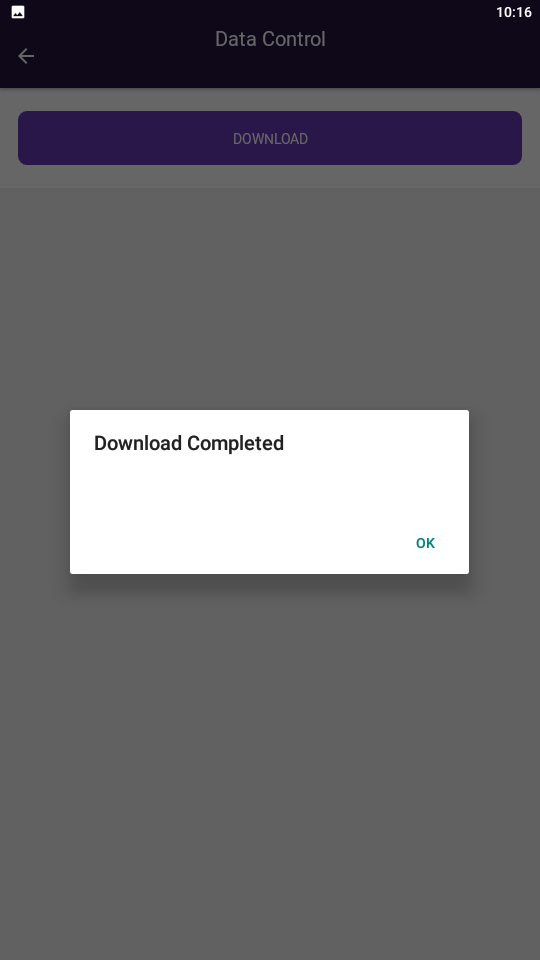
After pressing "OK" to the prompt, the Pocket Stock main menu will be displayed and all Pocket Stock menu options will be displayed.
If the data cannot be downloaded for whatever reason, an icon with a cross will indicate the download did not proceed.
If you do not have any network connection, a message will display on screen over the settings menu “No Network – No network is currently available – OK”.
Once your network is available you can try this step again.
If you see a message ‘Failed (-1001)’, this indicates there is an issue with the POSServer you are connecting to.