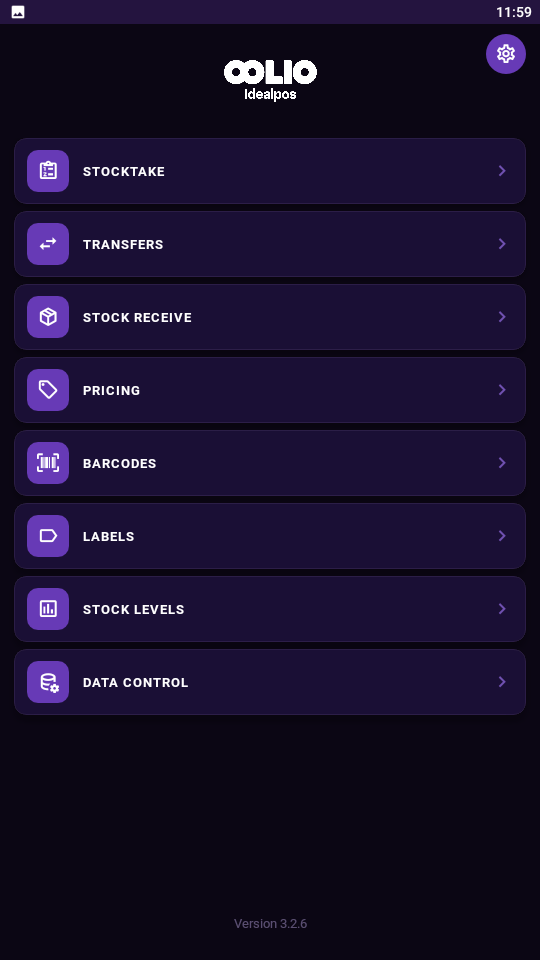
The ‘Upload’ function is available in the Data Control menu from the main screen.
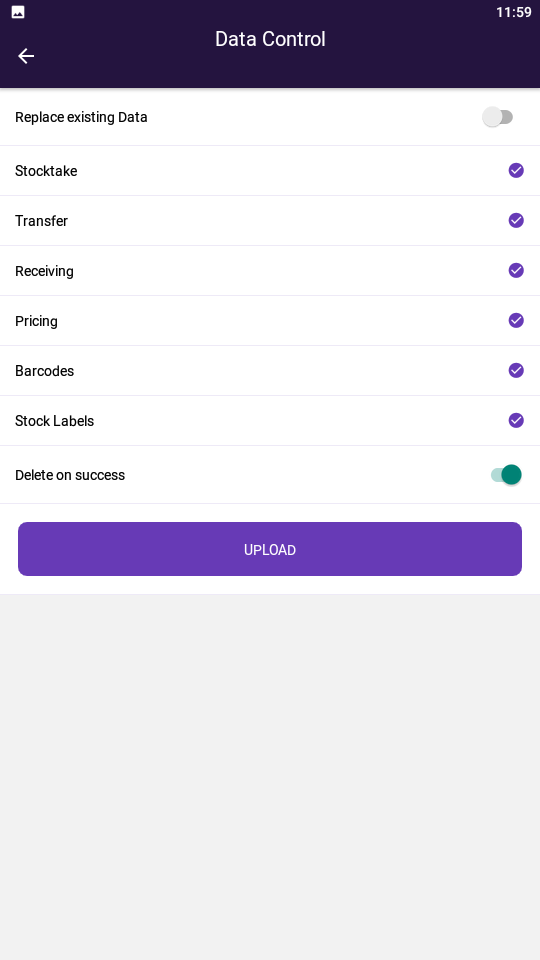
Select the information that you want to upload, which will be indicated by a tick, and press the Upload button.
When it is successful, it will display a ‘Done’ box.
If there is an issue connecting to the POSServer, a box with an ‘X’ will display.
If there is an issue with the network a message “No Network – No network is currently available – OK” will display.
You will need to resolve the network issue before you can continue the upload process.
If you see a message ‘Failed (-1001)’, this indicates there is an issue with the POSServer you are connecting to.
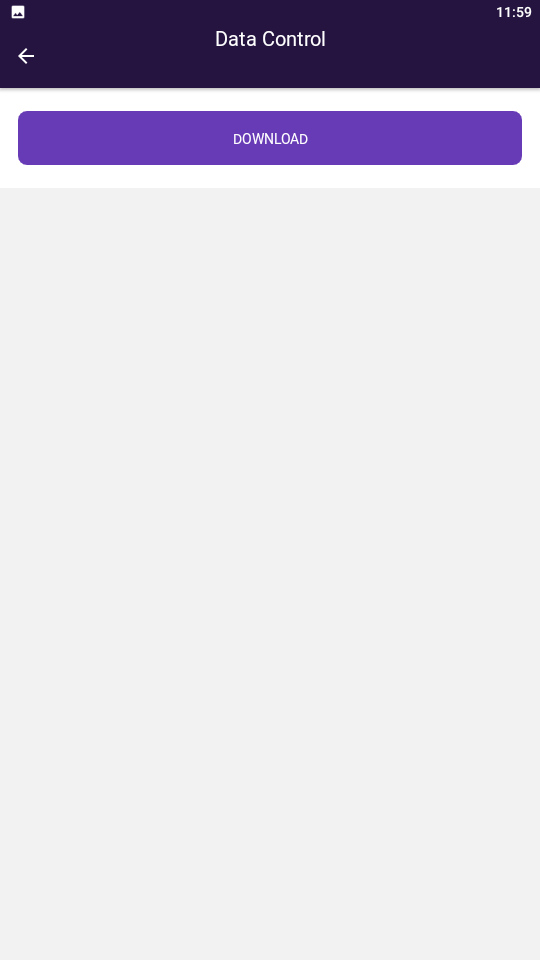
If there is no data on the device to be uploaded, the Upload button will not appear.
Instead, a Download button will be shown.
When the Pocket Stock app uploads data, it will be recorded in the Activity Log.
