When the Export Stock Items option is set to "eBev Inventory", Stock Items will be exported in a file format that is suitable for importing into eBev.
For more information about eBev, visit https://www.ebev.com
To configure the eBev Inventory format, complete the steps outlined below:
Configure Automatic Export Settings
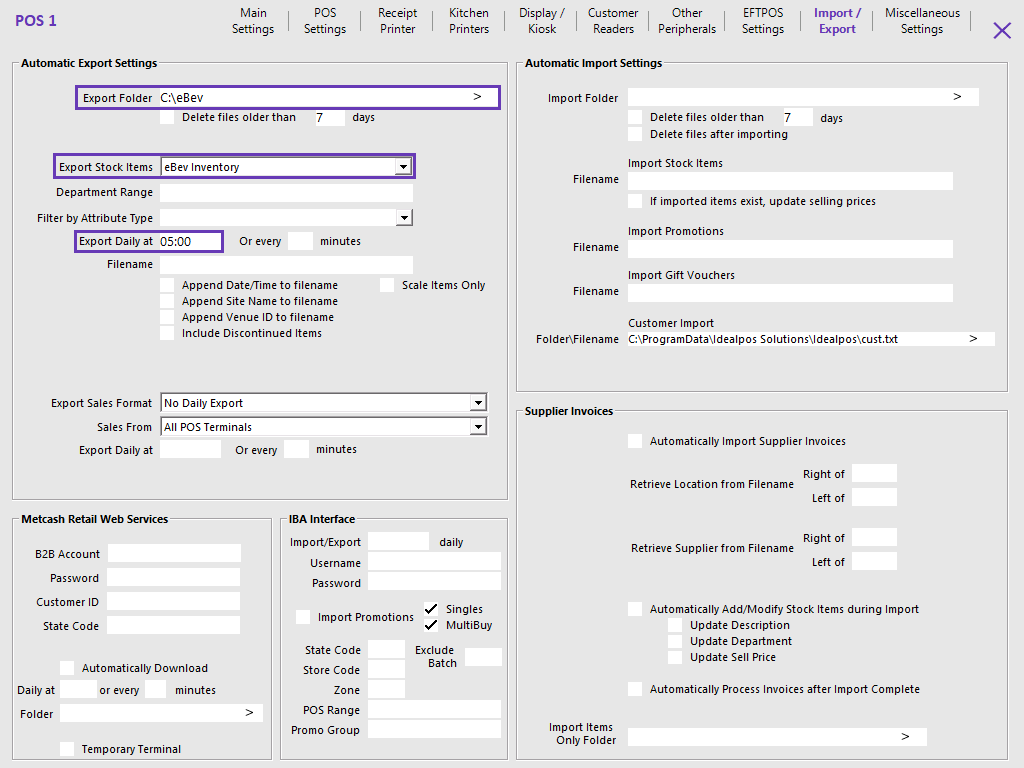
Go to: Back Office > Setup > POS Terminals > Select a POS Terminal > Modify.
In the Import/Export tab, configure as follows:
Automatic Export Settings
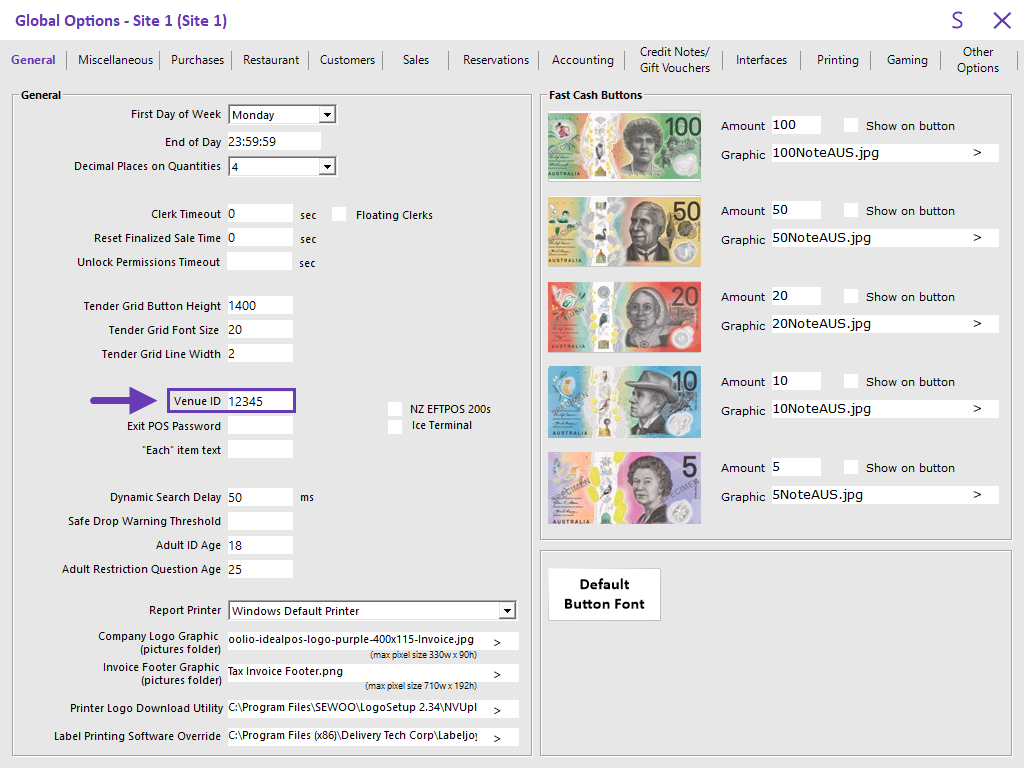
The NetSuite ID for the customer will need to be entered.
Idealpos will provide the ID when setting up a site for eBev.
Go to: Back Office > Setup > Global Options > General.
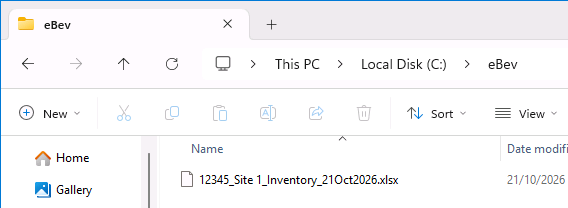
Data Exported to Export Folder at chosen time
The data will be exported to the Export Folder at the chosen time.
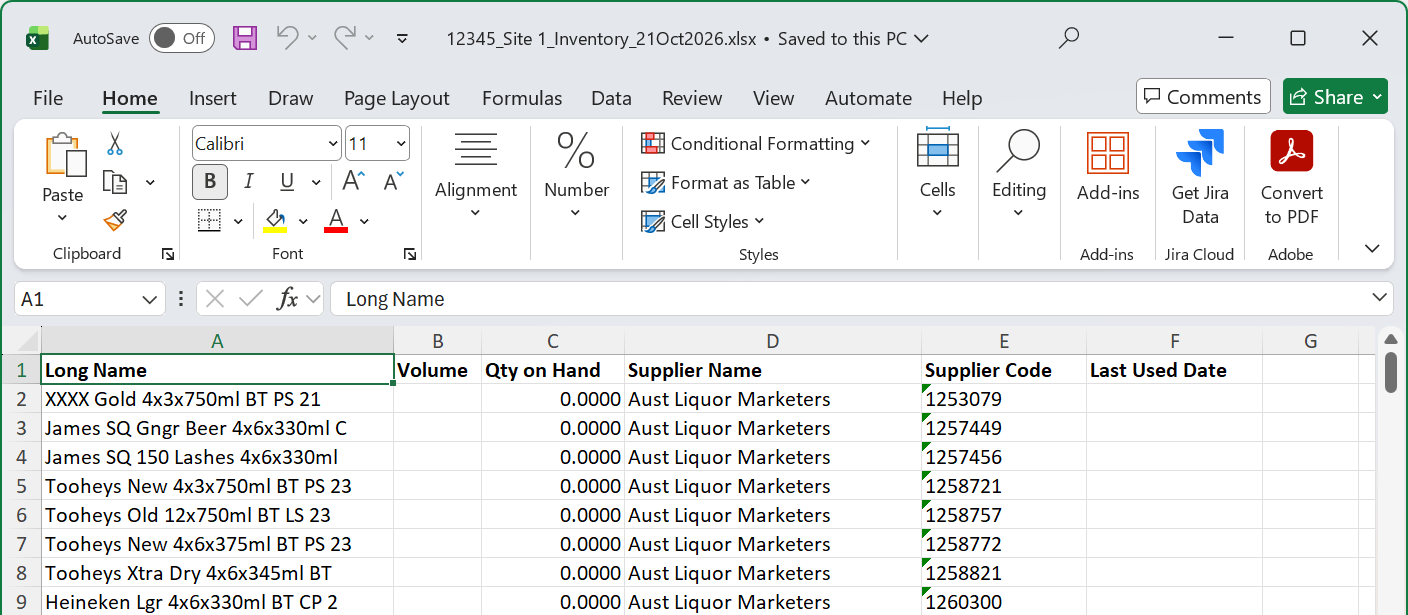
Automatically send file to eBev SFTP Site (Optional Functionality)
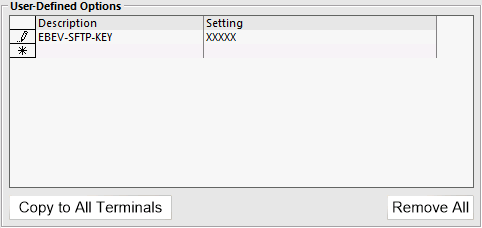
The eBev Inventory file can be sent automatically to eBev when an EBEV-SFTP-KEY User-Defined Option exists.
Go to: Back Office > Setup > POS Terminals > Select a POS Terminal > Modify > POS Settings.
In User-Defined Options, create the following User-Defined Option.
The key value will be provided when a site goes live.