Open topic with navigation
Trigger based on User-Defined Text Fields
This functionality enables a Promotion to be triggered based on User-Defined Text Fields that are set in the Customer's record.
This will enable Promotions to be restricted to specific Customers based on specific values stored in the Customer's User-Defined Text Fields.
A Promotion will only trigger when a Customer has been added to the sale which has the required values stored in their User-Defined Text Fields AND they purchase the required Stock Items specified in the Promotion.
 Pre-Requisites - Setting up Global Options > Customers > User-Defined > Text Fields
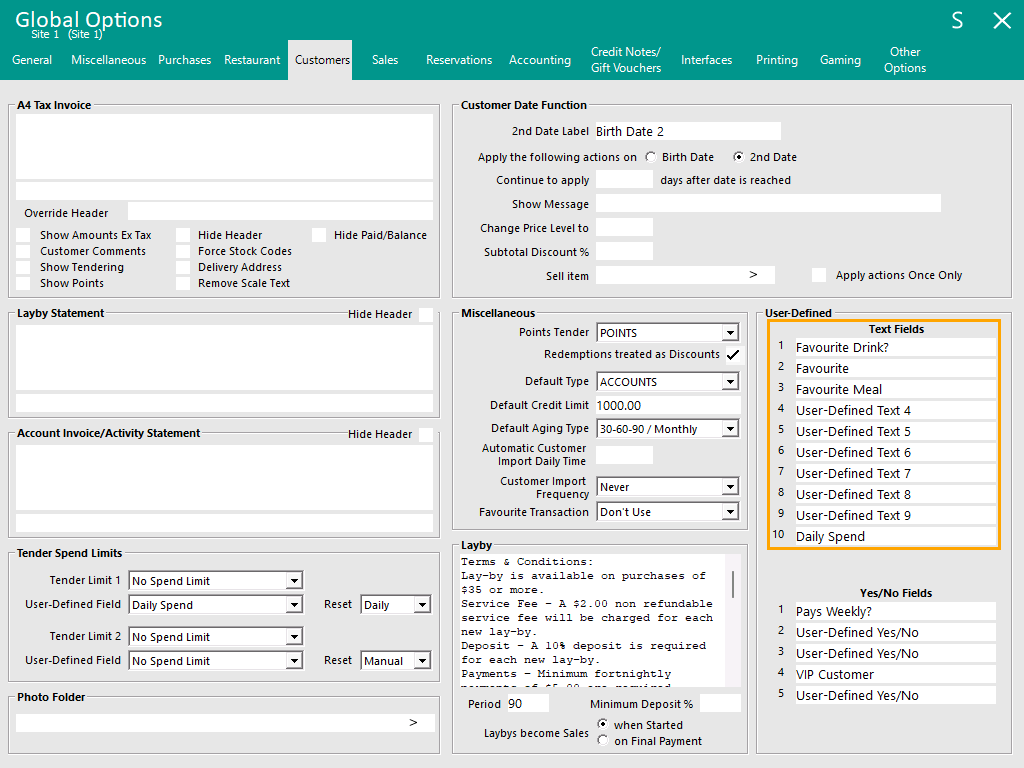
Go to: Back Office > Setup > Global Options > Customers > User-Defined.
In the Text Fields section, there are 10 available fields.
These can be configured to store text details about the customer.
E.g. Pays Weekly, VIP Customer, Pensioner, etc.
Any User-Defined Text Fields that are not currently used will appear as "User-Defined Text #", where # refers to the number of the User-Defined Text Field.
Pre-Requisites - Entering the required information into the User-Defined Text Fields for each Customer
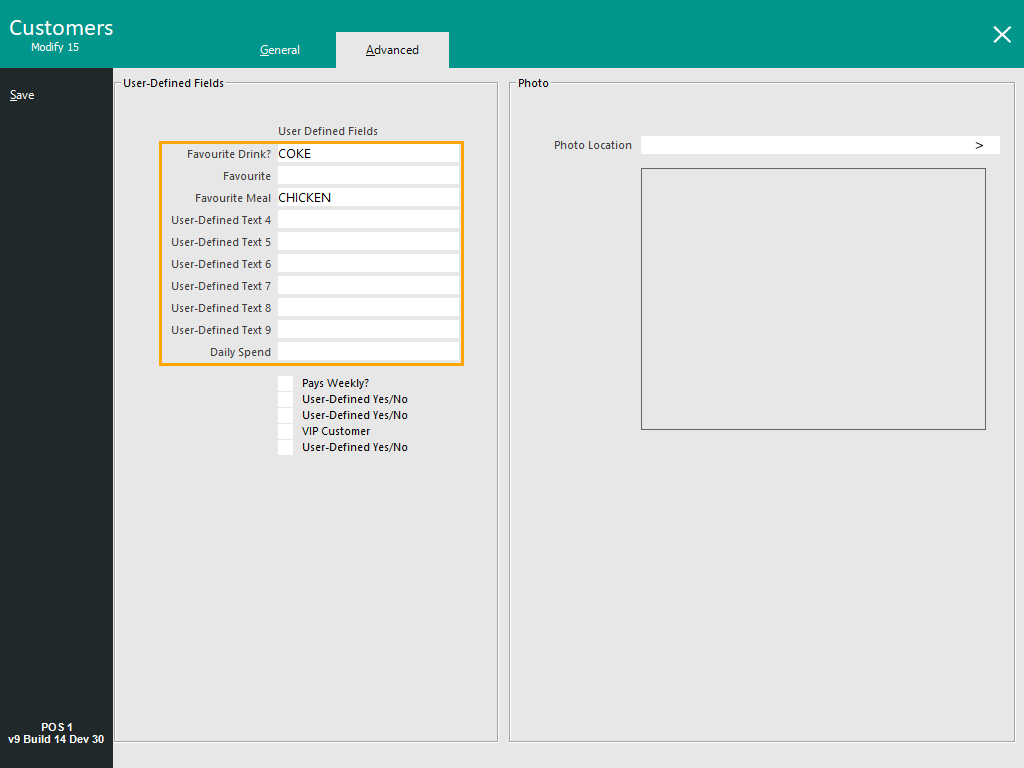
Go to: Back Office > File > Customers > Customers > Select a Customer > Modify.
In the Advanced tab, the User-Defined Text Fields are displayed at the top of the Advanced tab.
Enter the required values into the User-Defined Text Fields.
E.g. Favourite Drink=COKE, Favourite Meal=CHICKEN
When entering values into the User-Defined Text Fields, take note of the following details as these will be required when setting up the Promotion:
- The Text Fields are numbered based on their row number; the first row is UDT1, the last row is UDT10.
- Promotions can be triggered based on one or more User-Defined Text Fields.
E.g. If entering [UDT1=COKE] [UDT3=CHICKEN] into the User-Defined Text Field of the Promotion, the Customer will need to have Favourite Drink=COKE AND Favourite Meal=CHICKEN in their User-Defined Text Fields.
- The Promotion can be triggered by multiple possible values for each User-Defined Text Field as a comma separated list.
E.g. If entering [UDT1=COKE,SPRITE,FANTA] [UDT3=BEEF,CHICKEN] into the User-Defined Field of the Promotion, the Promotion will trigger for Customers that have a Favourite Drink of COKE, SPRITE or FANTA AND have a Favourite Meal of BEEF or CHICKEN.
- The Promotion can be triggered when a Customer's User-Defined Text Field contains a number value that falls between a specified range.
E.g. If User-Defined Text Field 9 is used to store the age of the member when they joined, the Promotion can be setup to trigger for all members that were between a specific age group when joining.
Entering [UDT9=18-30] into the Promotion's User-Defined Text Field will trigger when the Customer has a value between 18 and 30 in their User-Defined 9 Text Field.
Configure the Customer's User-Defined Text Fields as required:
Linking Promotions to User-Defined Text Fields
To link a Promotion to specific User-Defined Text Fields, go to:
Back Office > File > Sales > Promotions > Promotions.
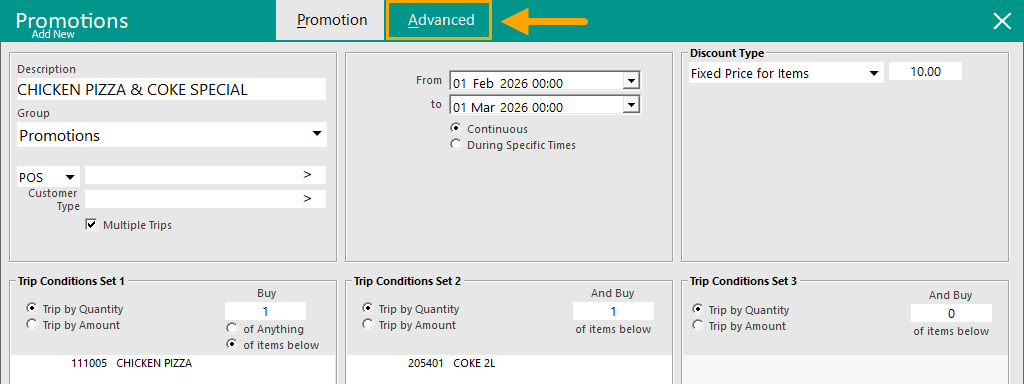
Add or Modify a Promotion.
Select the "Advanced" tab.
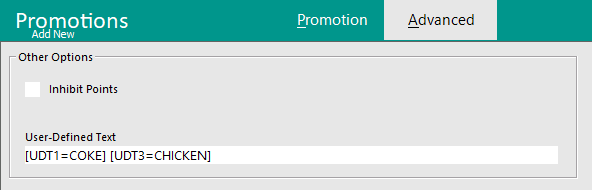
In the Advanced Tab of the Promotion, the User-Defined Text Field is used to specify which User-Defined Text Fields will be required for the Promotion to trigger.
To demonstrate this functionality using the example above, the Promotion will be restricted to:
- User-Defined Text 1 (Favourite Drink) = COKE
- User-Defined Text 3 (Favourite Meal) = CHICKEN
To restrict the Promotion to the above User-Defined Text Fields, the User-Defined Text Field in the Promotion Advanced Tab will need to have the following entered:
[UDT1=COKE] [UDT3=CHICKEN]
Tip!
As outlined above, this functionality supports the following combinations of User-Defined Text Fields.
- Multiple User-Defined Text Fields; E.g. Enter multiple Text Fields separated by a space: [UDT1=COKE] [UDT3=CHICKEN]
- Multiple values for each User-Defined Text Field; E.g. Enter multiple values separated by a comma: [UDT1=COKE,SPRITE,FANTA] [UDT3=BEEF,CHICKEN]
- A combination of the above: E.g. [UDT1=COKE,SPRITE] [UDT3=CHICKEN]
- A number range (if the Customer has a number value in a User-Defined Text Field that falls between the range set in the Promotion): E.g. [UDT5=18-30]
Once the User-Defined Text has been configured accordingly, close the Modify/Add Promotion window and when prompted to "Save Changes", press "Yes".
Close the Promotions window.
The above process can be repeated to setup any other Promotions that are required to trigger based on User-Defined Text Fields.
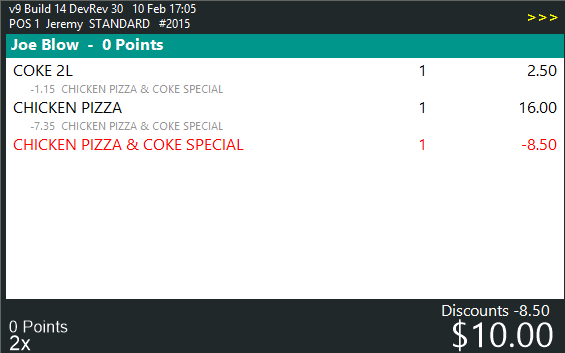
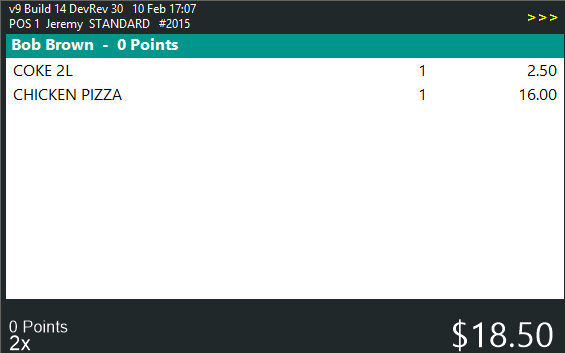
Example of Promotion being triggered
When the following conditions are met, the Promotion will trigger:
- Customer has User-Defined Text Fields set in their customer record that are the same as the User-Defined Text Fields set in the Promotion.
AND
- The Customer purchases the required items that are setup in the Promotion.
If the conditions are not met (no customer added to the sale or customer does not have the required User-Defined Text Fields), the Promotion will not trigger.
Open topic with navigation