Complete the following steps to download, install and configure SoftSDC.
To skip to a section on this page, click on one of the below links:
SoftSDC will need to be downloaded from https://www.softsdc.com
Note - SoftSDC is a paid product; it can be installed as a free trial that will function for 7 days, after which time it will require a license to continue.
To download SoftSDC, an account will need to be created on their website: Visit the SoftSDC site using the above link > press the "Sign up" link/button.
Populate the details on the Sign up form to create an account.
Once an account has been created, login with the details provided during account creation (email address and password).
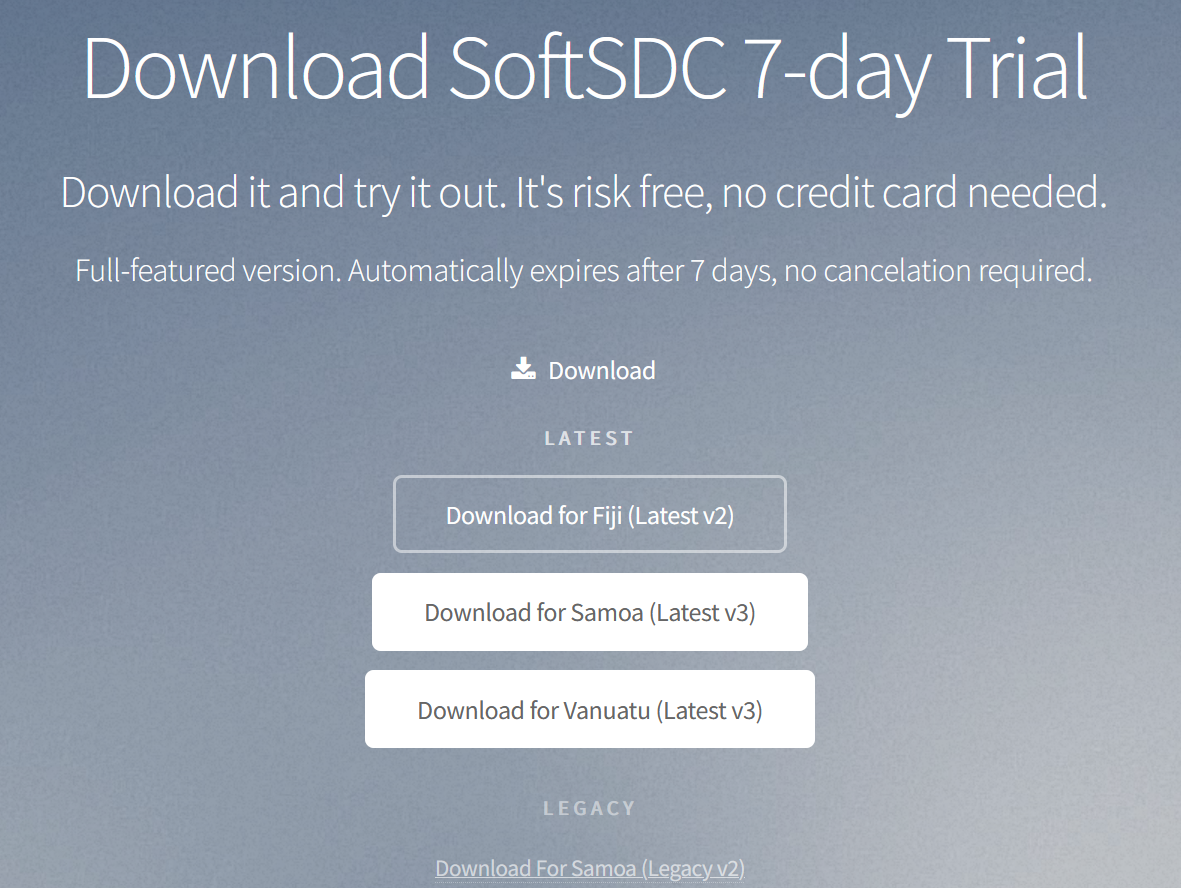
After logging in, links that are similar to the below will be displayed.
Select the required link.
A page similar to the below will be displayed.
Click on the option to Download SoftSDC for Windows.
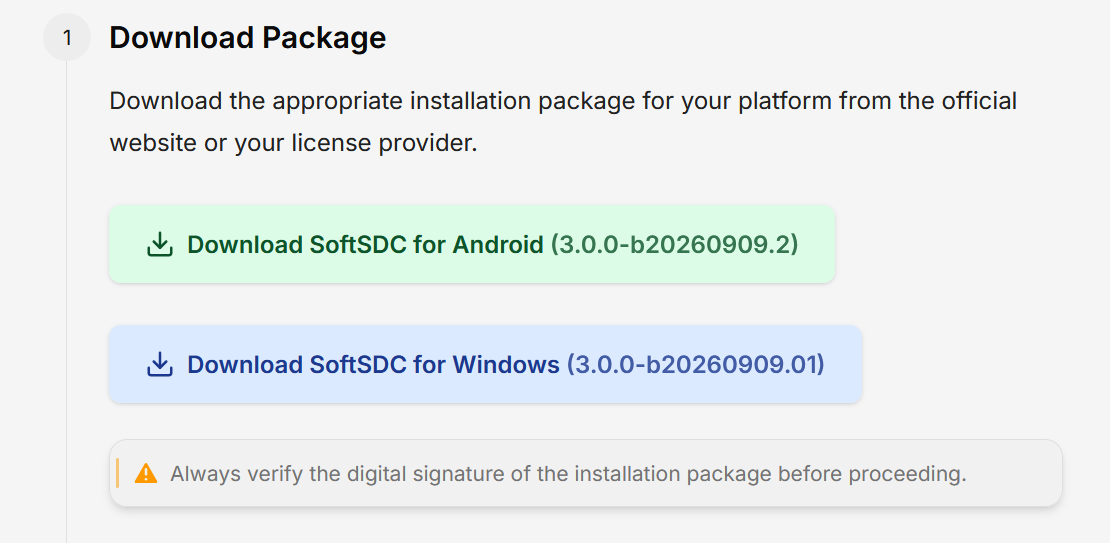
The instructions on the page that provides the installation link list the following steps that are required to prepare the system:
Run the installation package.
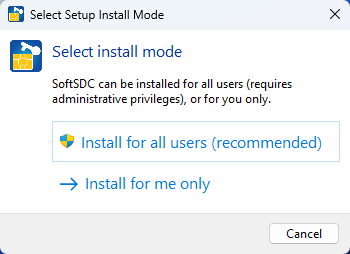
Select install mode - Install for all users (recommended)
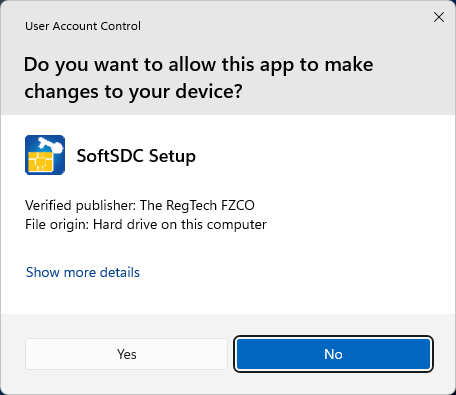
If User Account Control prompts are displayed, press "Yes" to continue with the installation.
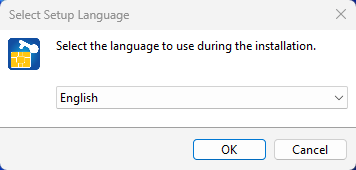
Select language - English.
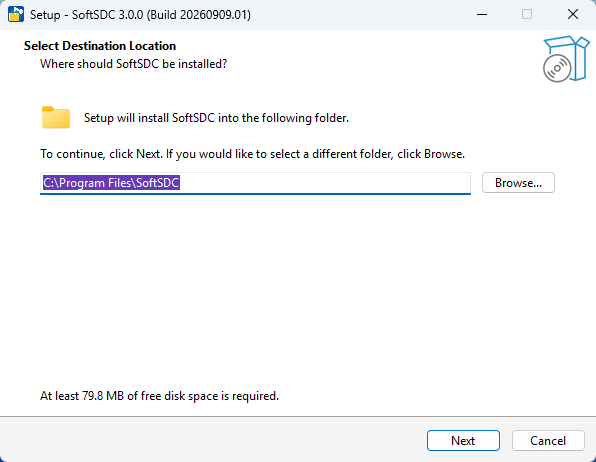
Select the Destination Location
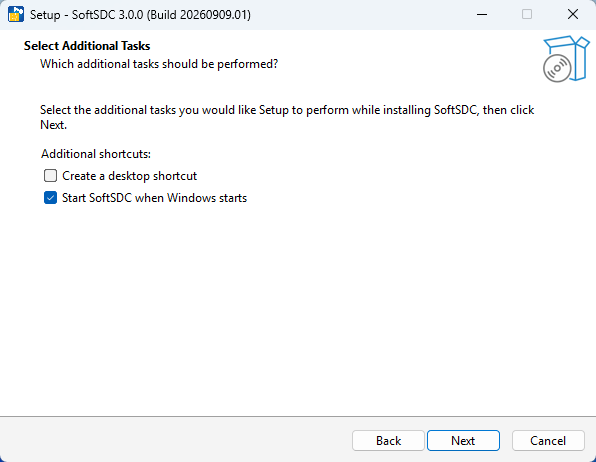
It is recommended that the option "Start SoftSDC when Windows starts" is enabled.
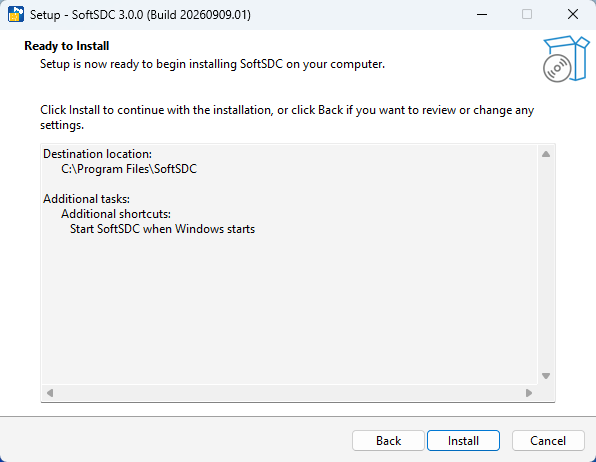
Confirm the installation.
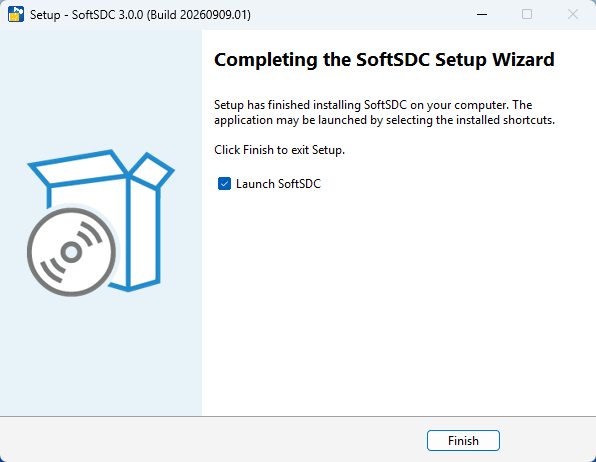
When the installation has finished, enable "Launch SoftSDC" > Press "Finish".
After installing and launching SoftSDC, the main SoftSDC application window will open.
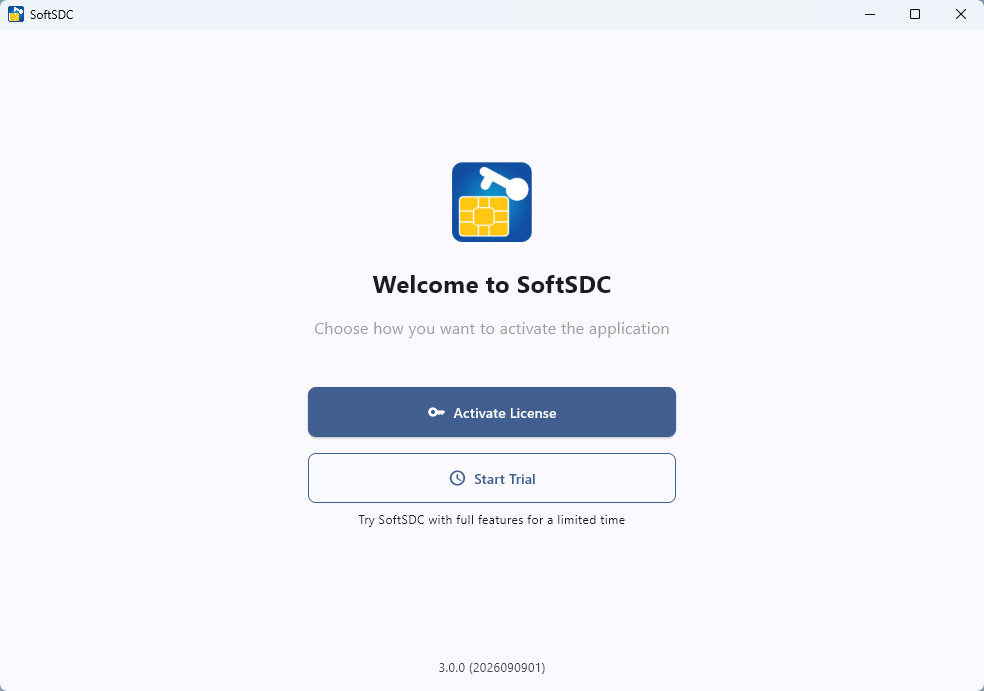
The first time the application starts, a prompt will be displayed to Activate License or Start Trial.
If an Activation Key is available, select Activate License and enter the key.
If an Activation Key is not available, press the "Start Trial" button.
The SoftSDC application can run for 7 days in trial mode.
When using the Trial, the SoftSDC application can be activated later from the main SoftSDC application window.
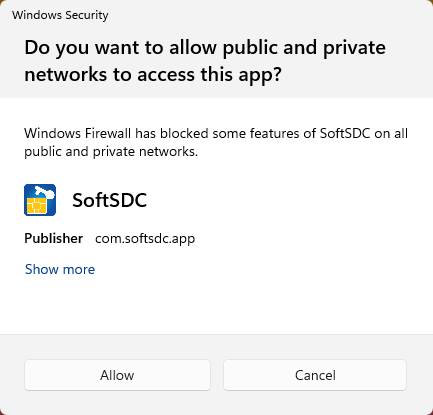
If a Windows Security prompt is displayed, press "Allow" to continue.
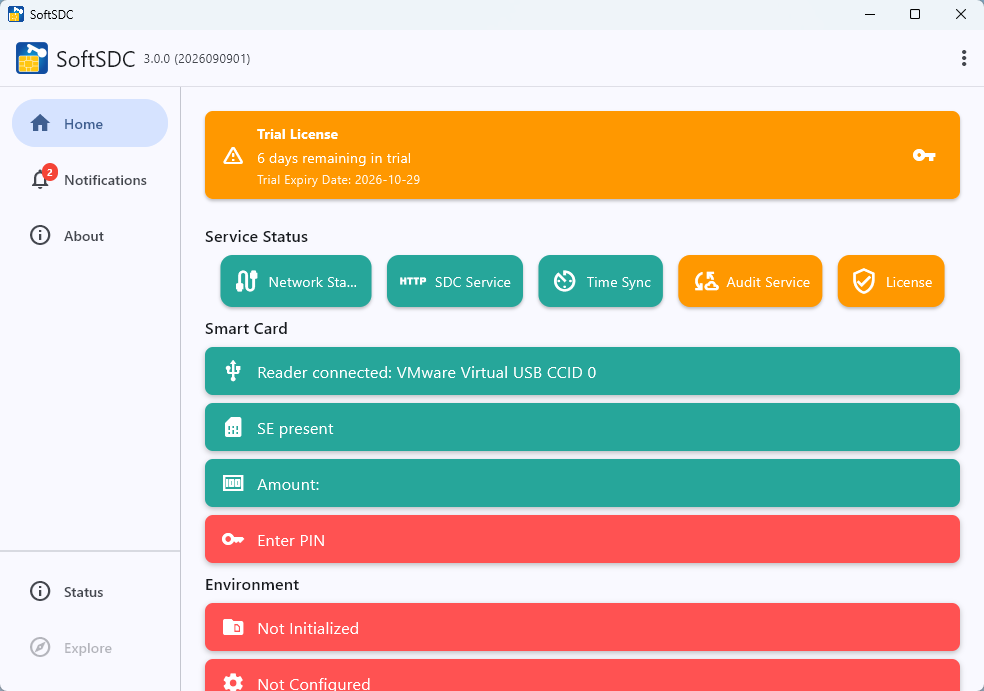
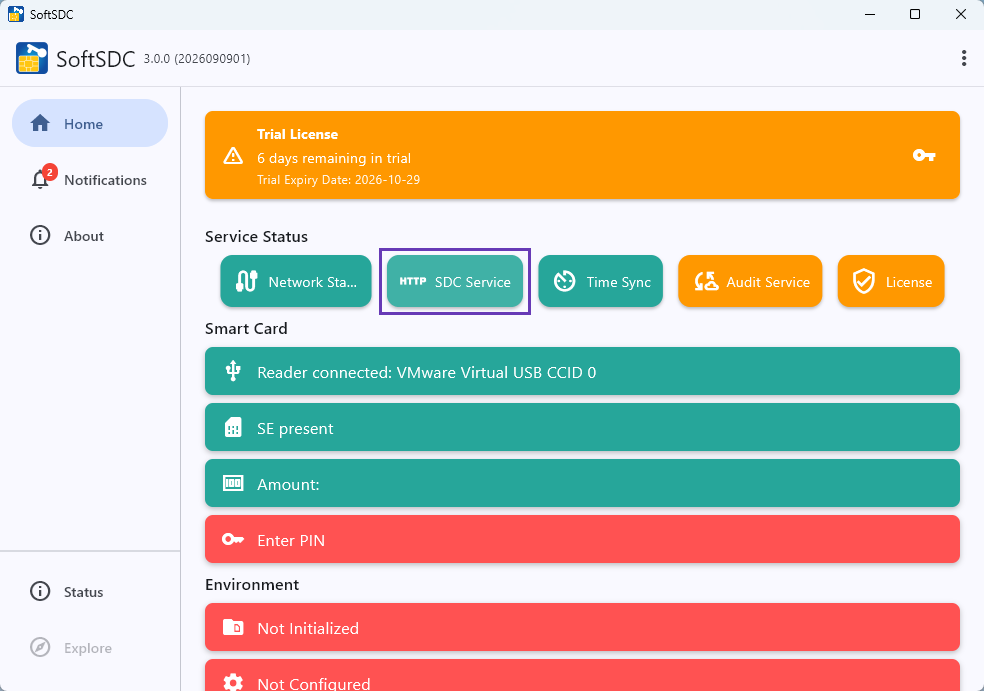
The main SoftSDC application window will be displayed.
Ensure that the Smart Card reader is connected and the SE present options are green.
If required, connect the Smart Card Reader and insert the Smart Card into the reader.
The SoftSDC application might need to be restarted after connecting a Smart Card Reader.
Right-click on the SoftSDC icon in the Windows system tray > Quit.
Then start the application via the Start menu > SoftSDC.
Do not enter the PIN via the SoftSDC application!.
PIN entry will be completed when configuring the integration in Idealpos.
The Port Number is required when configuring the Tax Monitoring Integration in Idealpos.
To retrieve the Port Number from SoftSDC, select the "SDC Service" option from the SoftSDC application.
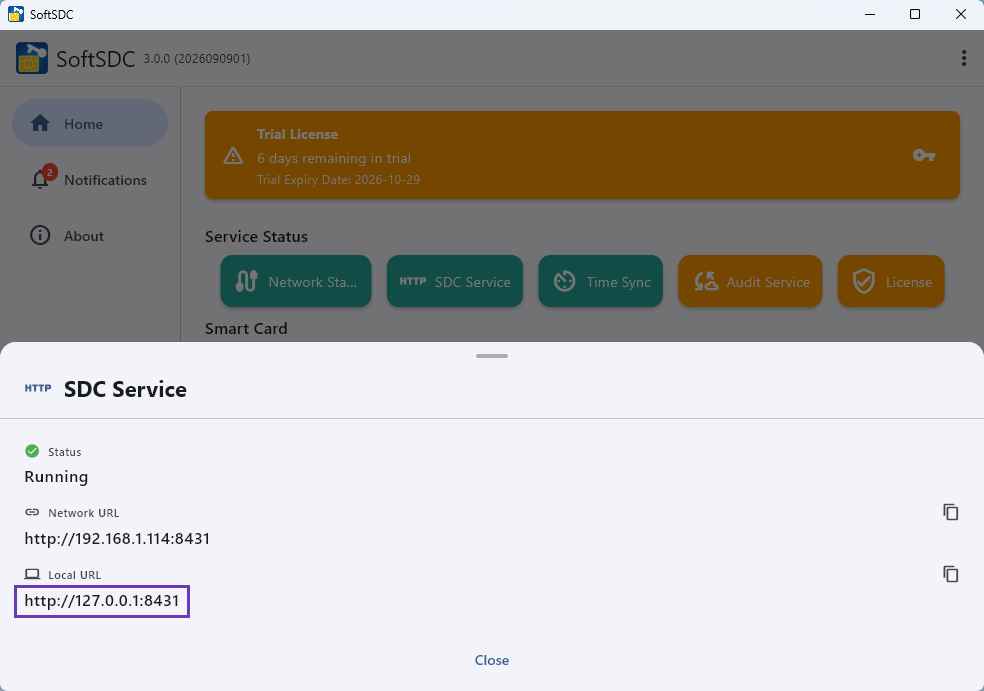
The SDC Service menu will appear.
The Port Number is shown in the Local URL (e.g. 8431 in the below example).
I.e. 127.0.0.1:8431
Take note of the Port Number as it will be required when configuring the Tax Monitoring Integration in Idealpos.
To continue with the Tax Monitoring Integration configuration, complete the steps outlined within the Configure Idealpos for DTI Tax Monitoring page.