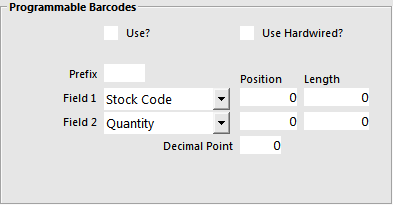
Programmable Barcodes are used in Grocery Stores for products that have been weighed and pre-packed using a Label Printing Scale.
Programmable Barcodes are configured in the two following sections of Idealpos:
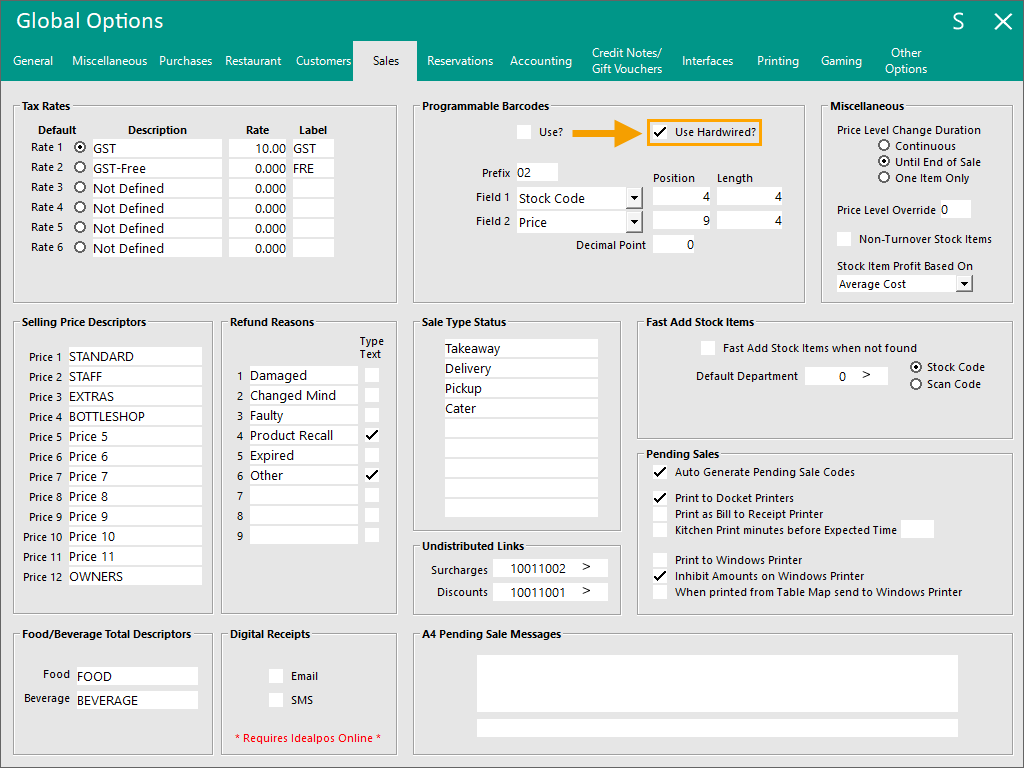
Use? – To enable feature.
Use Hardwired? – Will recognise barcodes as Hardwired Format.
Prefix – All barcodes starting with this prefix will be considered as a programmable barcode.
Field 1 – Choose either Stock Code or Department Code.
Field 2 – Choose either Price or Qty.
Position Fields – Enter the starting position for Field 1 & 2.
Length Fields – Enter the length of the fields for Field 1 & 2.
Decimal Point – Enter the decimal point position when using Price for Field 2.
The barcode number has the following data embedded in the code:
Prefix – Usually 02 or 2
Stock Code or Department Code – Usually 3 to 4 digits
Quantity or Price – Either the quantity or price can be embedded in the barcode
Check Digit – Last digit on the barcode
How to determine the length and position of Fields 1 and 2
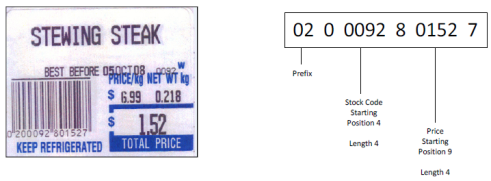

It is possible to have three formats in use at the same time which is Hardwired, Barcode Starting with 2 and Barcode Starting with 02.
This barcode will read when the ‘Use Hardwired?’ option is enabled.
Hardwired means, the position of length of the barcode is fixed for this type of barcode.
This allows you to set different positions and lengths for the other two types of barcode.
When Use Hardwired is enabled, it will detect Barcodes starting with 02 and 2 and also have the following starting numbers: 20, 22, 24, 28, and 29.
The example below is a “hardwired” programmable barcode that starts with 28:
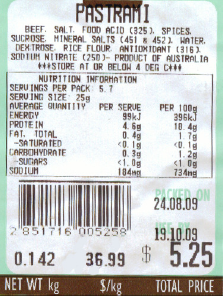
If the Barcode starts with a 02:
The position for the stock code is hardwired to position 3 with a length of 5.
The position for the price is hardwired to position 9 for a length of 4 with 2 decimal places.
If the Barcode starts with 2:
The position for the stock code is hardwired to position 3 with a length of 4.
The position for the price is hardwired to position 8 for a length of 5 with 2 decimal places.
Barcode Starting with 2 and 02
Some Scanners add a leading zero to UPC-A Barcodes.
To fix this, you can program the scanner to convert UPC-A barcodes to EAN-13, however this will change EAN 13’s with a leading zero NOT to output the zero character.
Idealpos will still identify barcodes starting with a 2 as a programmable barcode, even though the prefix has been set to 02 in programmable barcodes.
The way it works:
If the length is 12 characters and you have a prefix set as 02, and the first code isn’t 0 and the second code matches the 2-prefix number (2) POS will add a zero to the barcode.
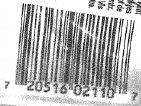
Whilst the barcode does not show a leading zero, when the barcode is scanned, a zero will be added to the number making it a total of 13 digits.
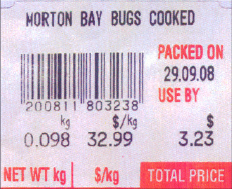
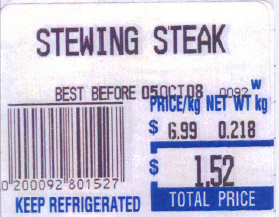
This is the most common type of programmable barcode and contains 13 digits.
User-Defined Settings to support an additional Programmable Barcode Type/Format
If an additional Programmable Barcode Format/Type needs to be supported (in addition to the already populated Programmable Barcode format that has been occupied in Global Options), this can be done by creating User-Defined Settings for the additional Programmable Barcode.
The steps to configure and enable this functionality are outlined as follows:
Ensure that the "Use Hardwired?" option is enabled.
Go to: Back Office > Setup > Global Options > Sales > Programmable Barcodes > Enable "Use Hardwired?"
New User-Defined Settings will need to be created.
The User-Defined Settings will vary depending on the type of Programmable Barcode that needs to be supported.
Therefore, an example of a Programmable Barcode, Stock Item and the required User-Defined Settings to support that Programmable Barcode are included as follows:
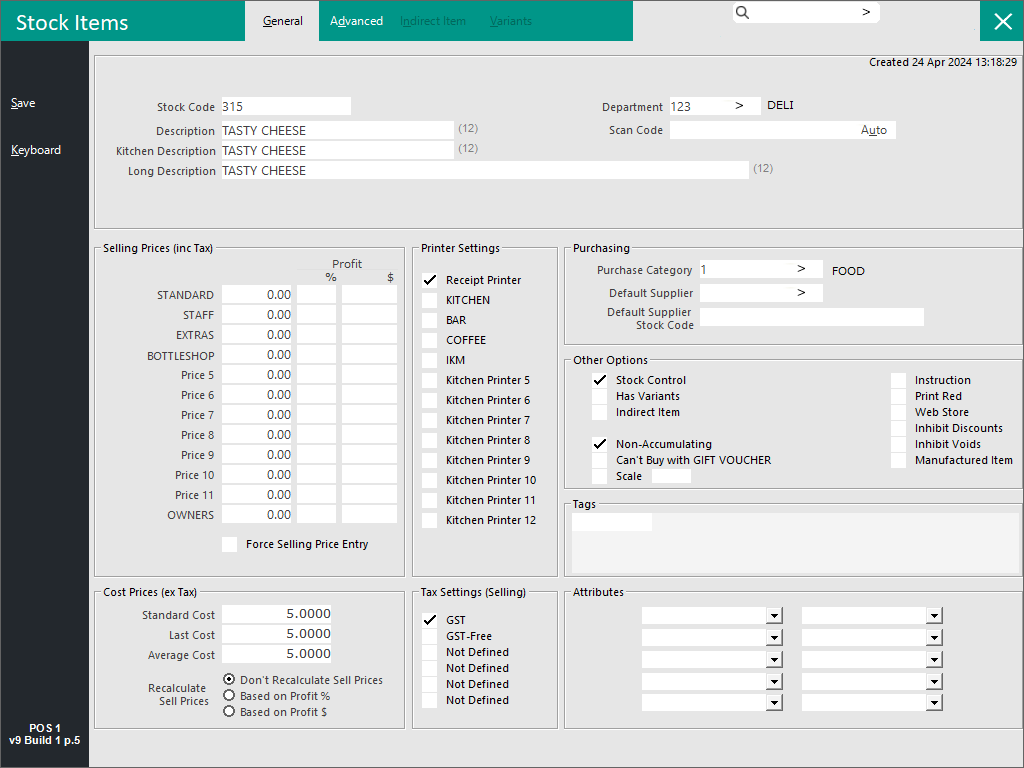
Stock Item Description: TASTY CHEESE
Stock Item Programmable Barcode: 240|0315|02884|9
PREFIX+PLUCODE+PRICE+CHECKDIGIT
User-Defined Options:
Idealpos v9 Build 3 and older
In Idealpos v9 Build 3 and older, only one PBPREFIX format can be configured.
The below User-Defined Options will continue to work in newer builds, but will be restricted to a single PBPREFIX format.
Description: PB-PREFIX
Setting: 24
Description: PB-AMOUNTSTART
Setting: 8
Description: PB-AMOUNTLENGTH
Setting: 5
Description: PB-ITEMSTART
Setting: 4
Description: PB-ITEMLENGTH
Setting: 4
Idealpos v9 Build 4 and newer
In Idealpos v9 Build 4 and newer, unlimited formats can be created.
To achieve unlimited formats, the prefix of the Barcode is included at the end of the User-Defined Options.
To enable this functionality, first, the below User-Defined Option needs to be created:
Description: PB-PREFIX
Setting: 1
Once the above User-Defined Option has been created to enable the functionality, create User-Defined Options for Barcodes that start with 24:
Description: PB-PREFIX24
Setting: 24
Description: PB-AMOUNTSTART24
Setting: 8
Description: PB-AMOUNTLENGTH24
Setting: 5
Description: PB-ITEMSTART24
Setting: 4
Description: PB-ITEMLENGTH24
Setting: 4
Tip!
Additional Barcode formats can be added as another set of User-Defined Options for the format.
E.g. If another Barcode has a prefix with 23, another set of User-Defined Options can be created as follows:
Description: PB-PREFIX23
Setting: 23
Description: PB-AMOUNTSTART23
Setting: 8
Description: PB-AMOUNTLENGTH23
Setting: 5
Description: PB-ITEMSTART23
Setting: 4
Description: PB-ITEMLENGTH23
Setting: 4
User-Defined Options as shown configured in Setup > POS Terminals > POS Settings > User-Defined Options:
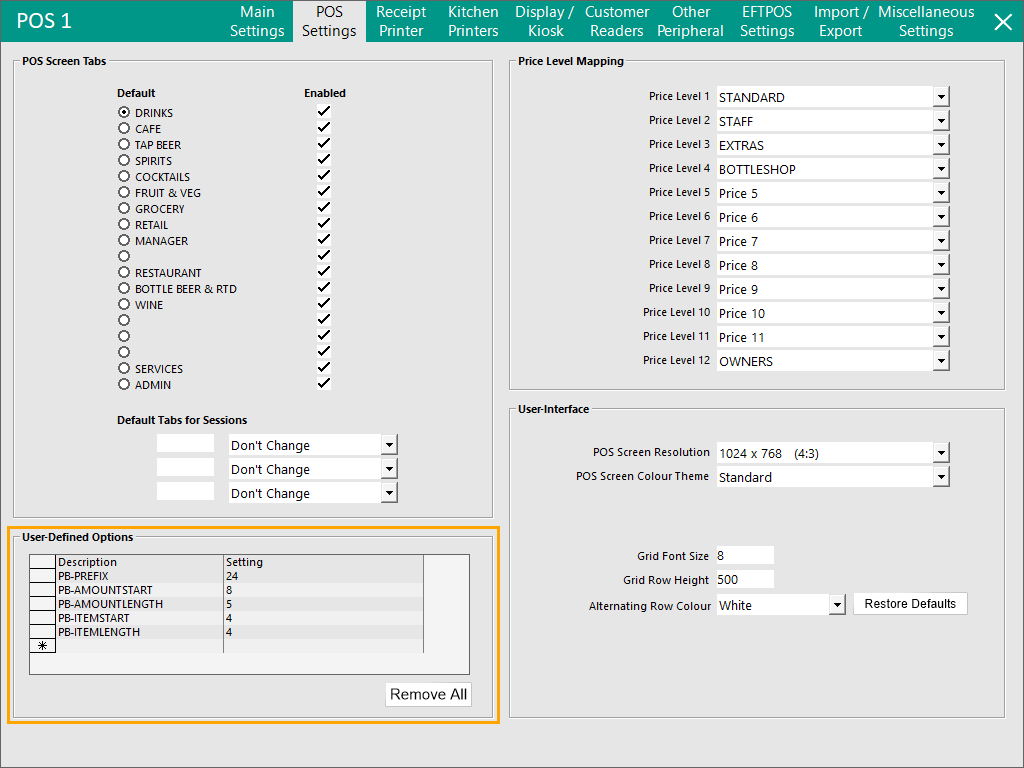
Close the POS Terminal Settings.
If required, repeat the creation of the User-Defined Options on each POS Terminal that needs to support the Programmable Barcode.
Go to: POS Screen.
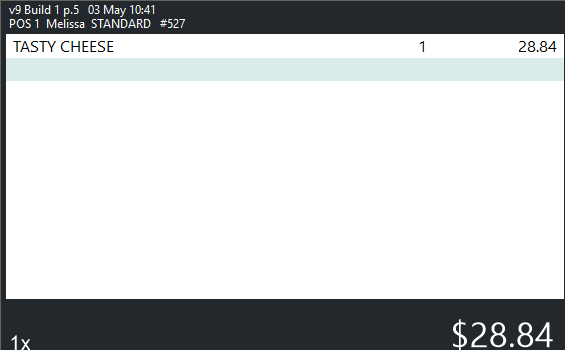
When the example Programmable Barcode is entered/scanned into the POS Screen, the example Stock Item is added to the sale using the Price that is embedded in the Programmable Barcode:
Enter/Scan the Programmable Barcode into the sale window:
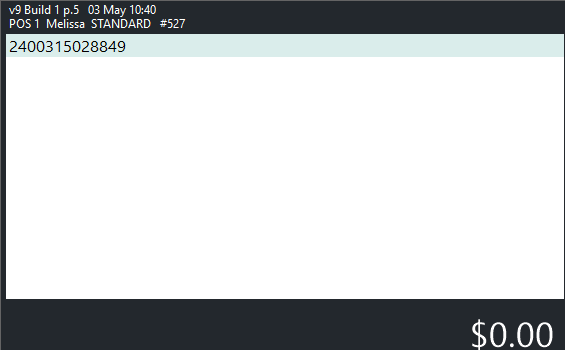
After pressing ENTER/scanning the barcode, the Stock Item is added to the sale using the Price that is embedded in the Programmable Barcode:
In Idealpos v10 Build 3 and newer, a Standard Search will be performed if the Programmable Item not found.
This functionality works whether using the Programmable Barcodes option in Global Options > Sales or the User-Defined options outlined above.
This is beneficial when a store has standard Scan Codes that fall in the same range as Programmable Barcodes.
Scenario 1 - Programmable Barcodes option used from Global Options > Sales
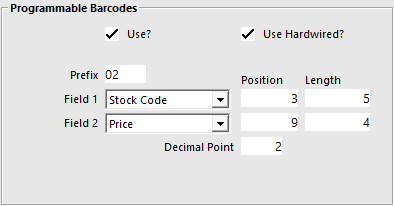
E.g. Programmable Barcodes (Back Office > Setup > Global Options > Sales) is configured as follows:
| Stock Item Code | Stock Item Scan Code Field | Barcode Printed on Product | Programmable? | Behaviour |
| 1 | 0200600000008 | 0200600000008 | No |
When the Barcode is scanned on the POS Screen and it doesn't return a match based on the Programmable Barcodes settings in Global Options > Sales, a standard search will be done using the Scan Code - if it matches a Stock Item, the matching Stock Item is added to the sale using the Stock Item's Sell Price.
Prior to this change, the POS Screen would display an "Item Not Found" message as it didn't do a standard search when the Programmable Barcode Item wasn't found. |
| 191 | Blank | 0200191113460 | Yes | When the Barcode is scanned on the POS Screen and it returns a match to a Stock Item Code based on the Stock Code position in the barcode as-per the Programmable Barcodes settings in Global Options > Sales, the item is added to the sale using the price or quantity from the barcode (depending on whether Price or Quantity is set in the Programmable Barcodes settings). |
Scenario 2 - User-Defined Options with Programmable Barcode configuration
User-Defined Options exist as follows:
| Stock Item Code | Stock Item Scan Code Field | Barcode Printed on Product | Programmable? | Behaviour |
| 2 | 9317471008437 | 9317471008437 | No |
When the Barcode is scanned on the POS Screen and it doesn't return a match based on the Programmable Barcodes User-Defined Options, a standard search will be done using the Scan Code - if it matches a Stock Item, the matching Stock Item is added to the sale using the Stock Item's Sell Price.
Prior to this change, the POS Screen would display an "Item Not Found" message as it didn't do a standard search when the Programmable Barcode Item wasn't found. |
| 160 | Blank | 9300160600562 | Yes | When the Barcode is scanned on the POS Screen and it returns a match to a Stock Item Code based on the Stock Code position in the barcode as-per the User-Defined Options, the item is added to the sale using the price from the barcode. |