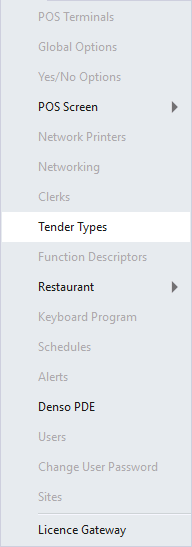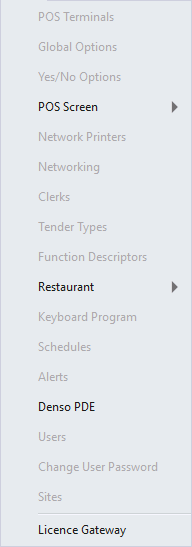
In addition to configuring the individual Tender Types in Back Office > Setup > Tender Types, some additional configuration will be required depending on the required functionality.
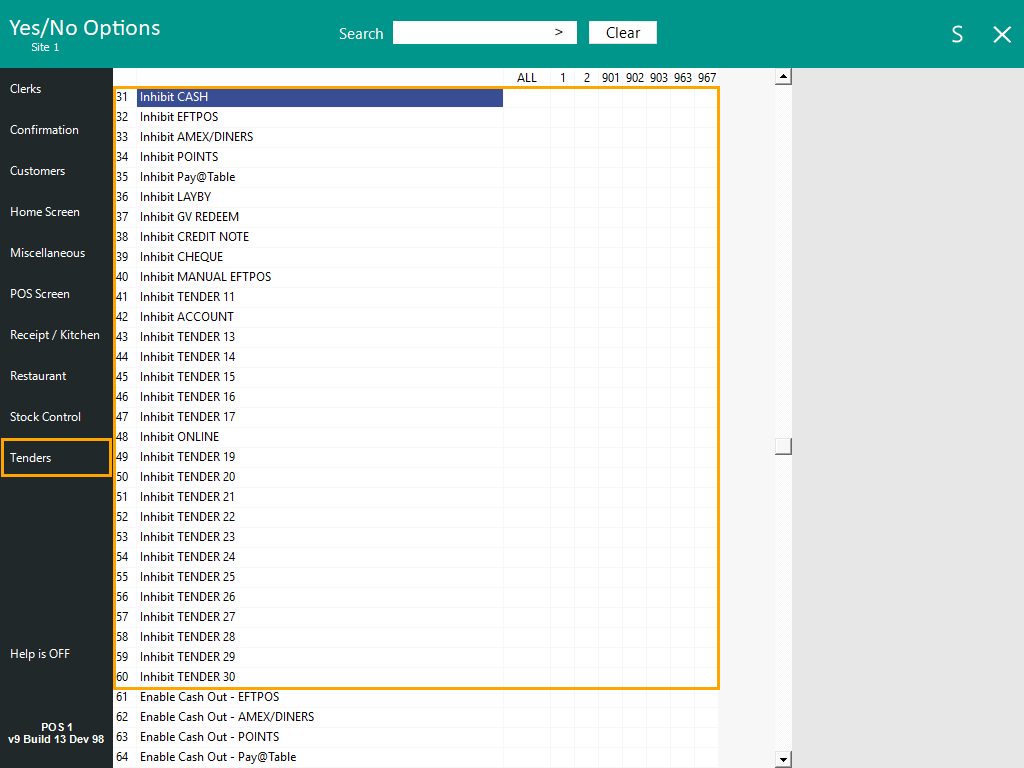
The visibility of Tender Types on the Idealpos Tender Screen is controlled via Inhibit Tender options in the Yes/No Options - Tenders section.
Go to: Back Office > Setup > Yes/No Options > Tenders.
To show a Tender Type on the POS Screen, ensure that the Inhibit Tender option is unchecked.
To hide a Tender Type on the POS Screen, ensure that the Inhibit Tender option is checked.
The options can be configured for All Terminals (toggle the checkbox as required in the All column for Tender Types), or configured for each POS Terminal (toggle the checkbox as required in the column corresponding to the POS Terminal Number).
If required, permission to Tender to a Tender Type can be restricted for a User or Clerk.
Note the following points when configuring User/Clerk Permissions:
Each Clerk is linked to a User and therefore the Clerk will inherit Permissions from the User they're linked to (in the case of Clerks linked to a Non-Admin User).
Generally, Clerk Permissions can only be used to prevent a Clerk from accessing a function or feature which has been allowed or enabled for the non-Admin User they're linked to.
Clerk Permissions cannot be used to grant a Clerk access to a feature which has been disabled at the User Permissions level for the Non-Admin User that they're linked to.
User-Level Permissions
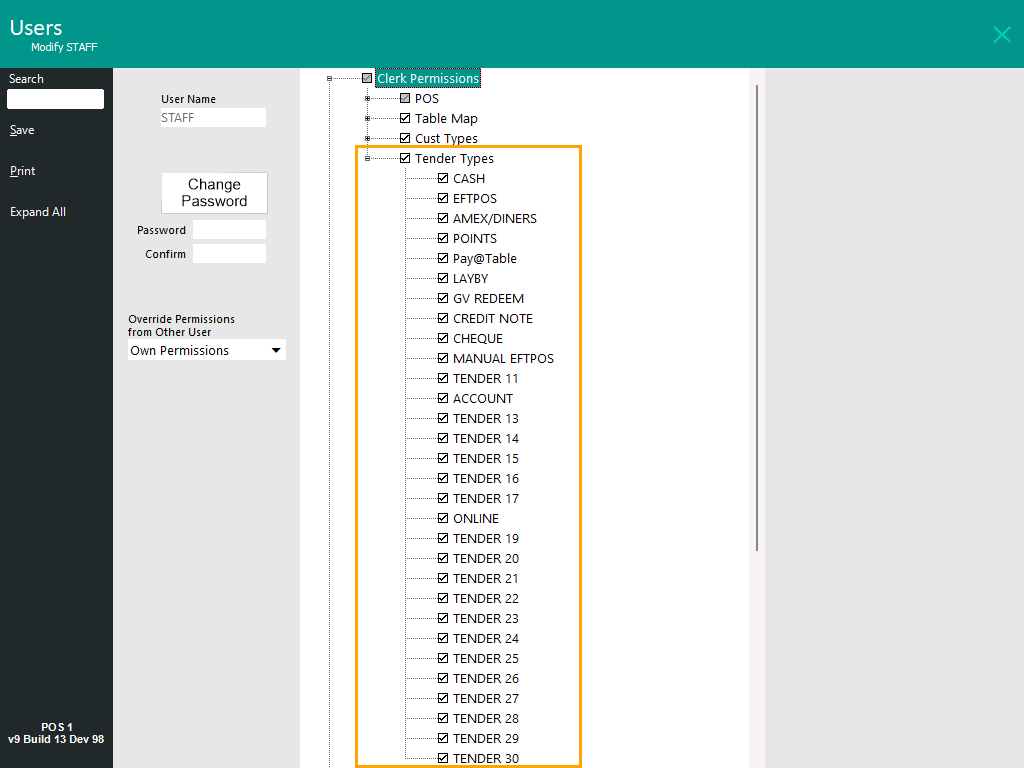
To configure User-level Permissions, go to: Back Office > Setup > Users > Select a non-Admin User > Modify.
Under Clerk Permissions > Tender Types > Tick/Untick any Tender Types, noting that any Tender Types which are disabled will be inherited by the Clerks linked to this User, preventing that Clerk from accessing the disabled Tender Type.
Clerk-Level Permissions
To configure Clerk-level Permissions, go to: Back Office > Setup > Clerks > Select a Clerk > Permissions > Clerk Permissions > Tender Types > Untick any Tender Types that need to be restricted for the Clerk.
Note that if a Tender Type has been denied at the User-level, the Tender Type will also be denied for the Clerk, regardless of whether the Tender Type is enabled at the Clerk level.
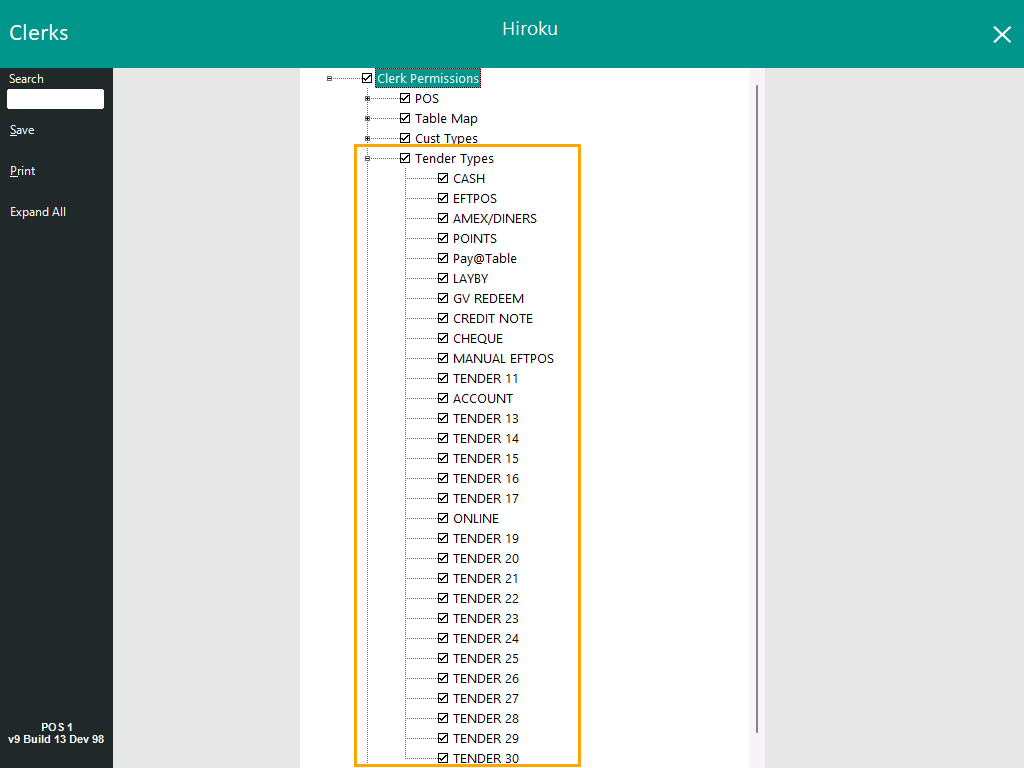
When a Tender Type has been restricted for a Clerk/User, the following prompt will be displayed when the Clerk attempts to Tender to it.

Access to the Tender Types menu option in Back Office > Setup > Tender Types can be controlled via User Permissions.
Go to: Back Office > Setup > Users > Select a non-Admin User > Modify.
Under Setup, toggle the Tender Types option to control whether a User has access to this function.
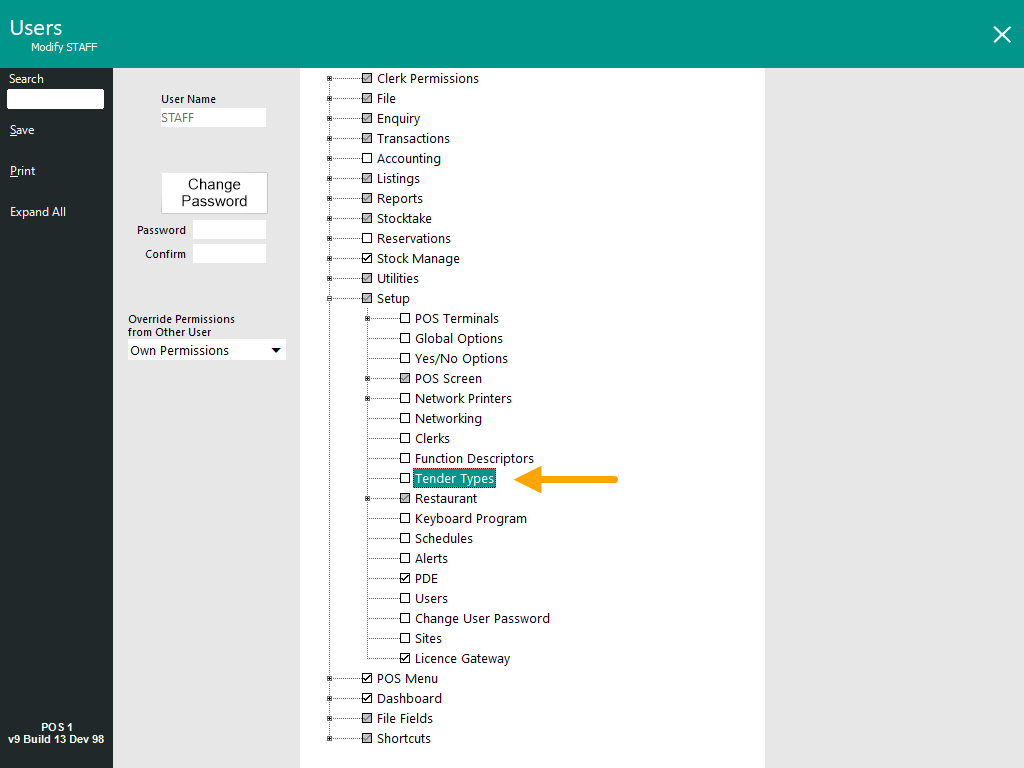
When the User is logged into Idealpos, access to the option will appear as available or greyed out, depending on whether the User has permission to access the function.